Configuración de SAML para Azure
Consulta el resumen de SAML antes de comenzar estas instrucciones.
Esta sección proporciona un ejemplo de configuración de Microsoft Azure como proveedor de identidad de LCD.
Inicia sesión en https://portal.azure.com.
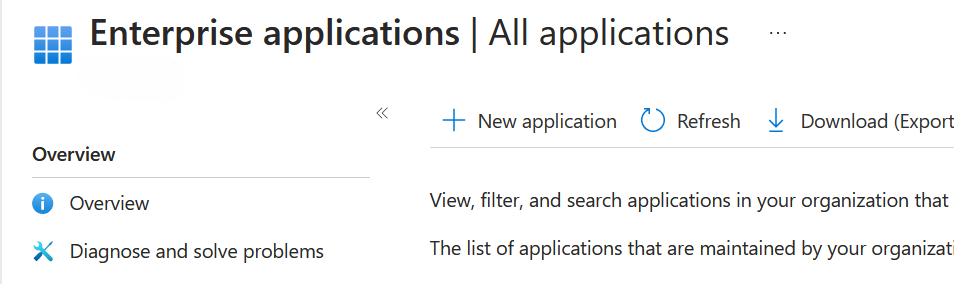
En el Azure Active Directory, bajo Manage, selecciona Enterprise applications.
Haz clic en New application.
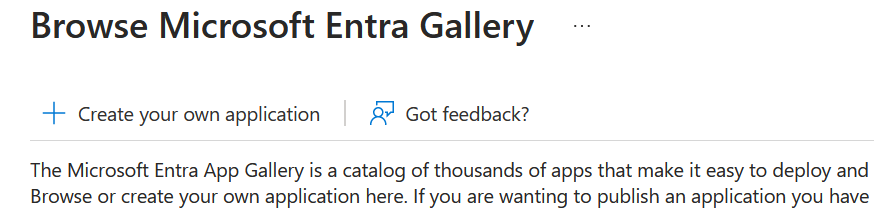
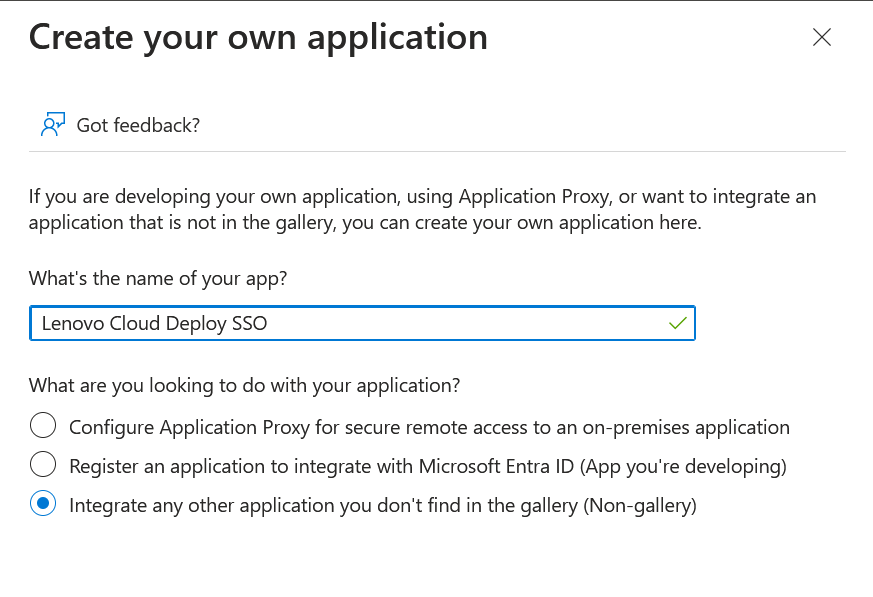
Haz clic en Create your own application.
Ingresa el nombre para tu aplicación y selecciona Integrate any other application…
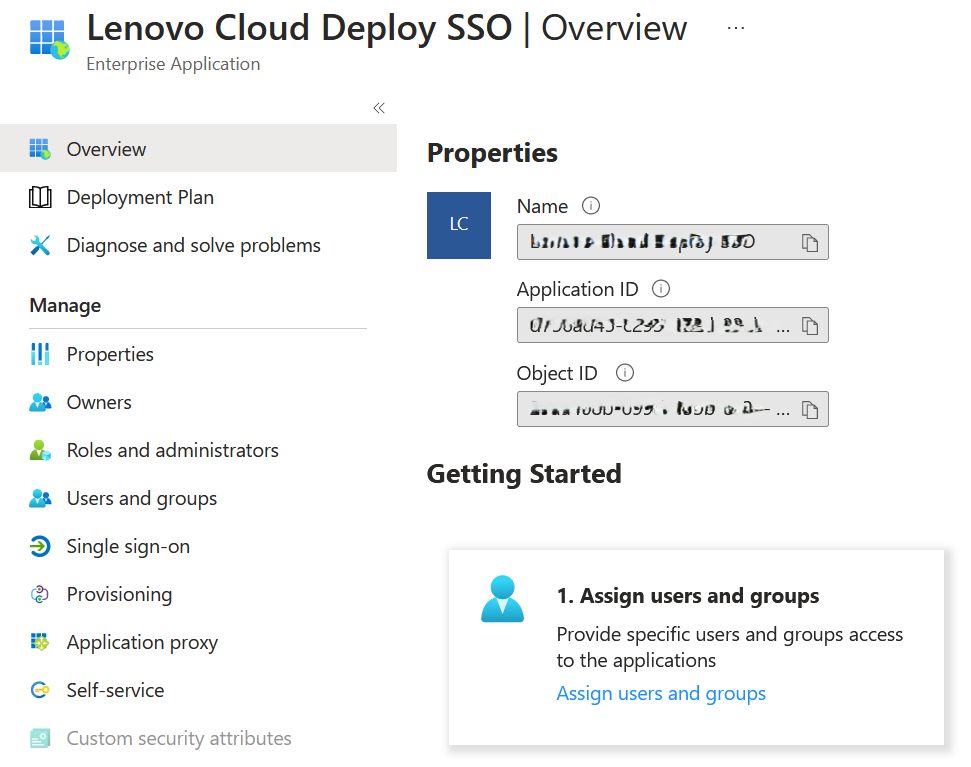
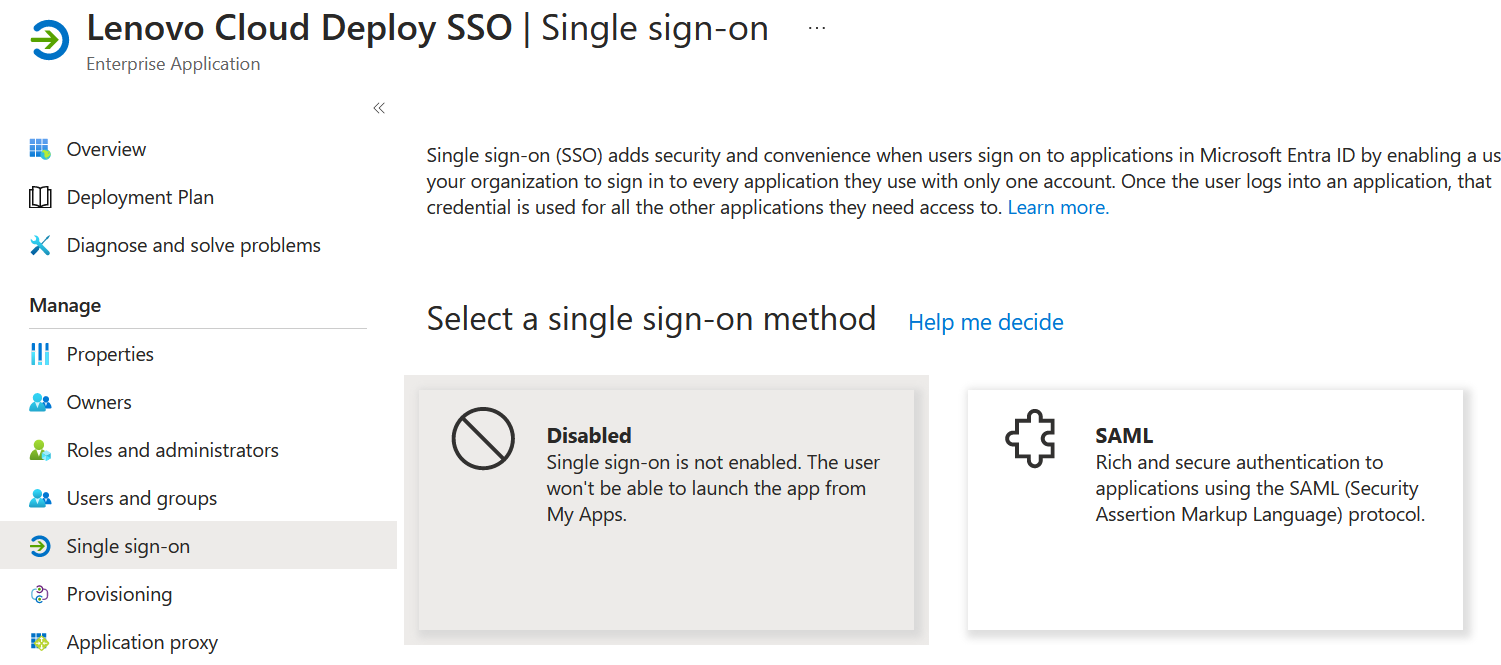
En la aplicación recién creada, bajo Manage, selecciona Single sign-on.
Select Method: Haz clic en el mosaico SAML.
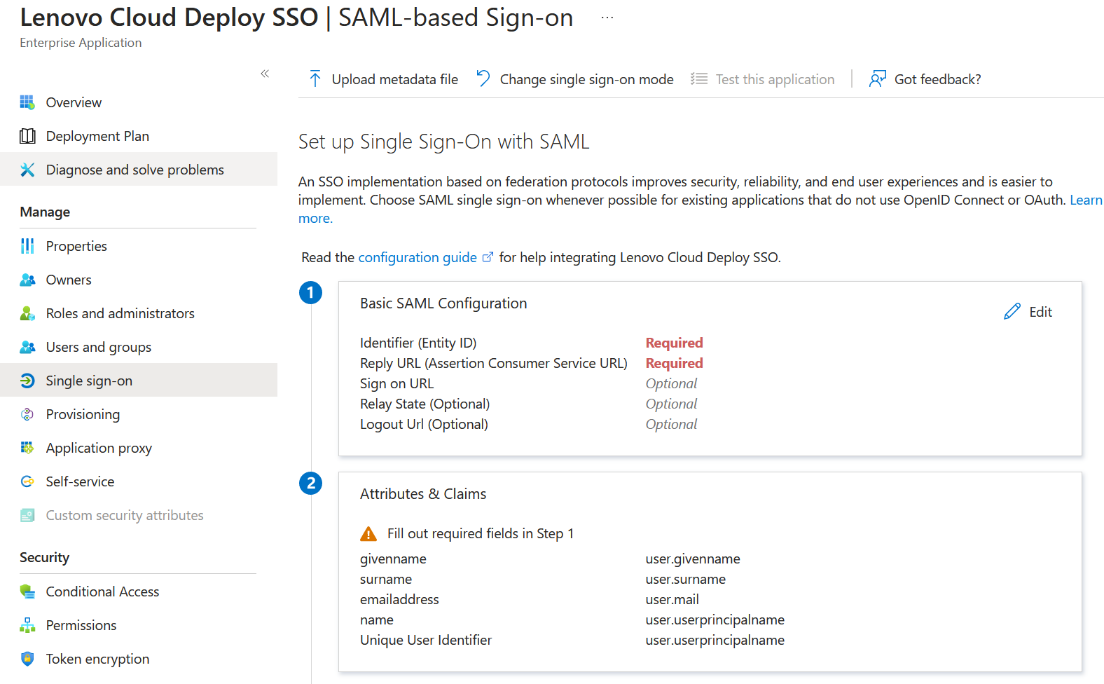
Configuración básica de SAML: Haz clic en Edit.
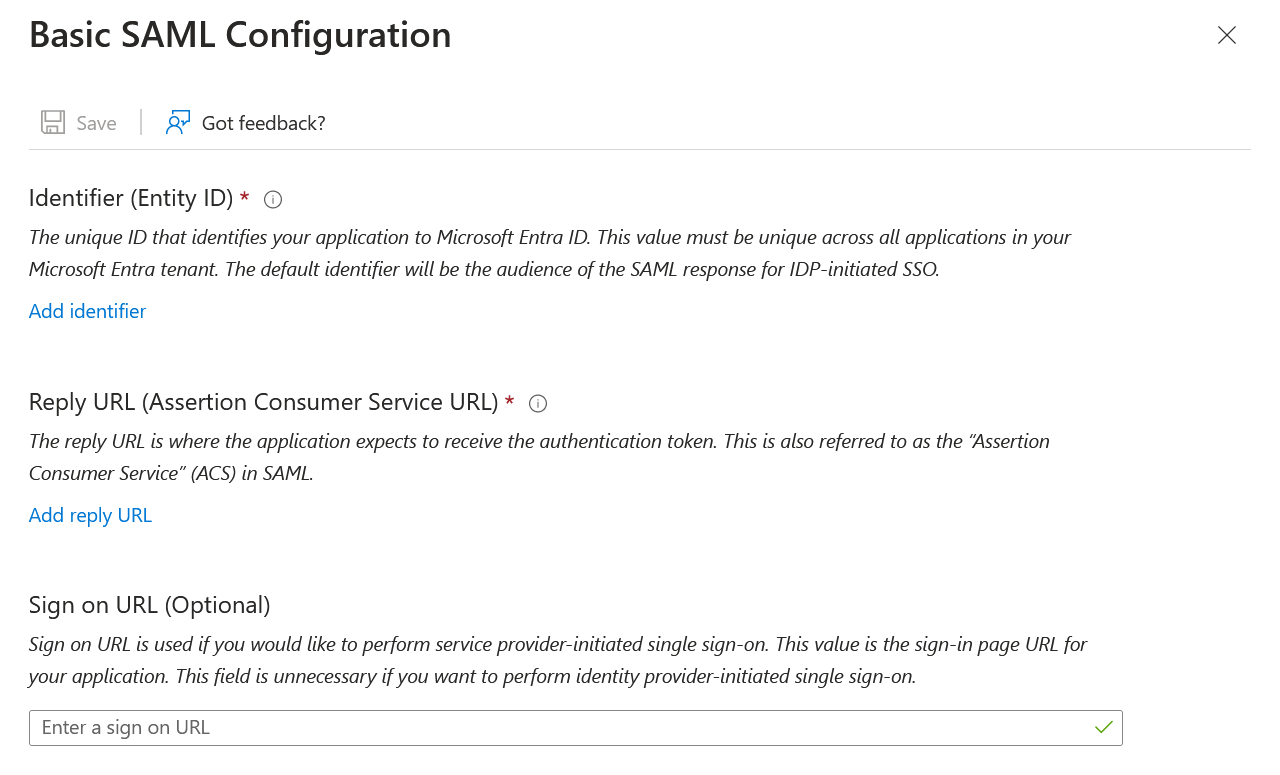
Configuración básica de SAML:
a. Ingresa un identificador. Puedes usar cualquier valor.
b. La Reply URL es
https://lenovoclouddeploy.com/api/token/ws/exchange/LCD_Account_Key, reemplazando LCD_Account_Key con la clave de 20 caracteres proporcionada durante el onboarding. Por ejemplo,https://lenovoclouddeploy.com/api/token/ws/exchange/123456789ABCDEFGHIJKc. Confirma que la casilla Default esté marcada.
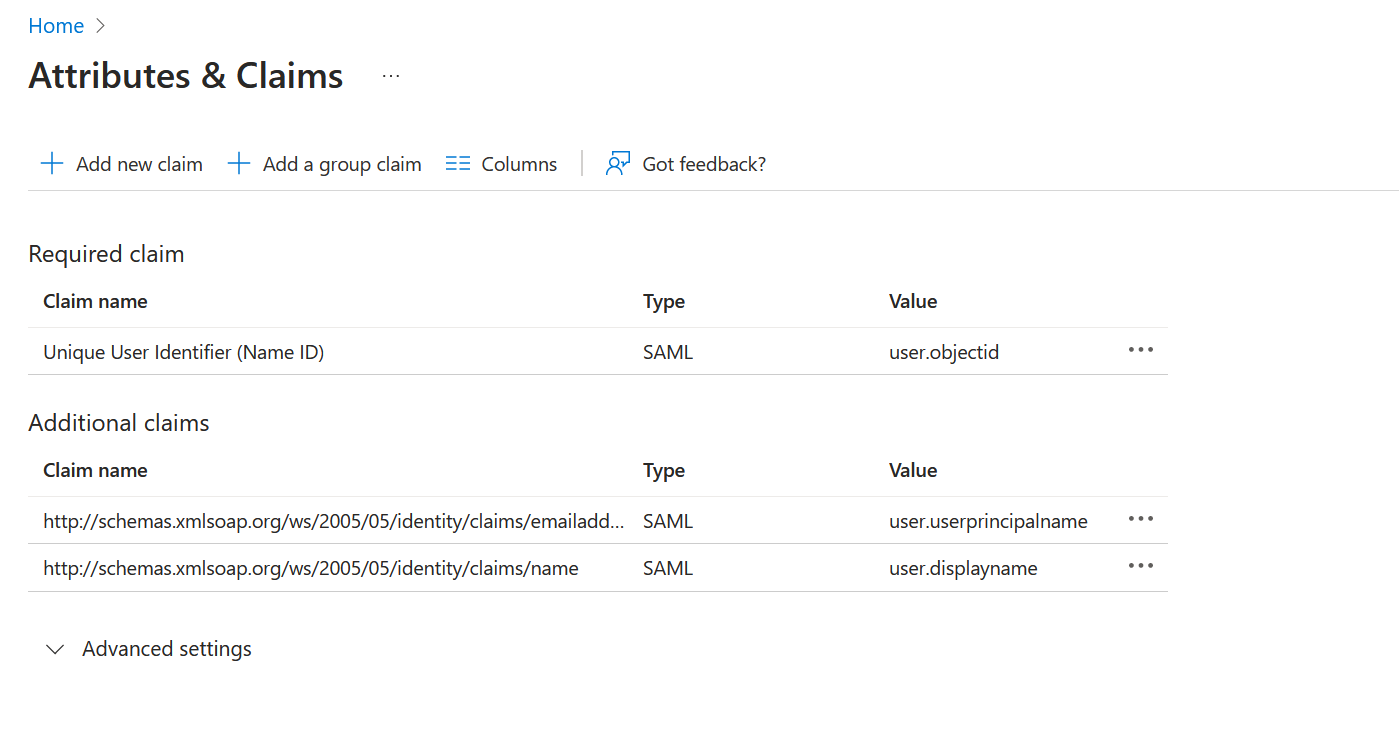
User Attributes & Claims: Haz clic en Edit.
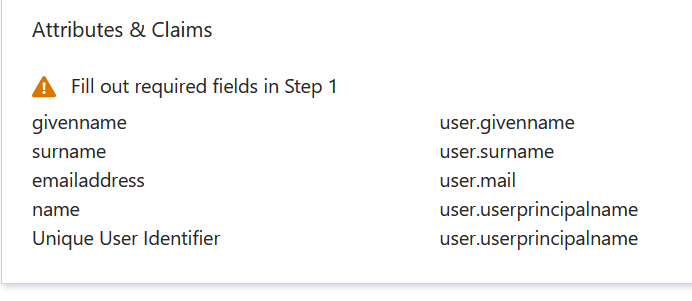
User Attributes & Claims: Agrega claims adicionales para name y email address.
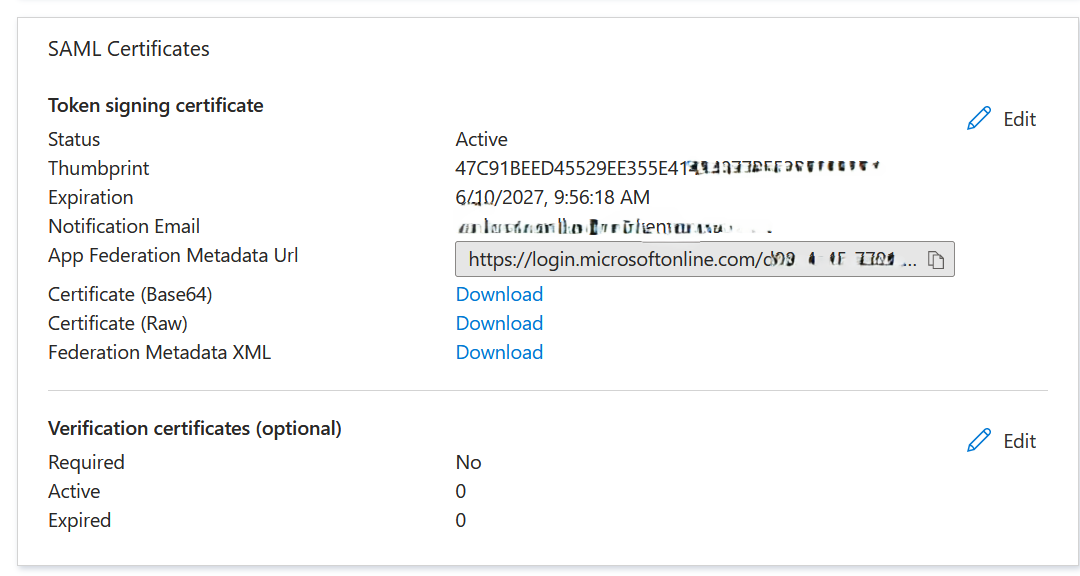
Token Signing Certificate: Proporciona la App Federation Metadata URL a tu contacto técnico de LCD.
User Access URL:
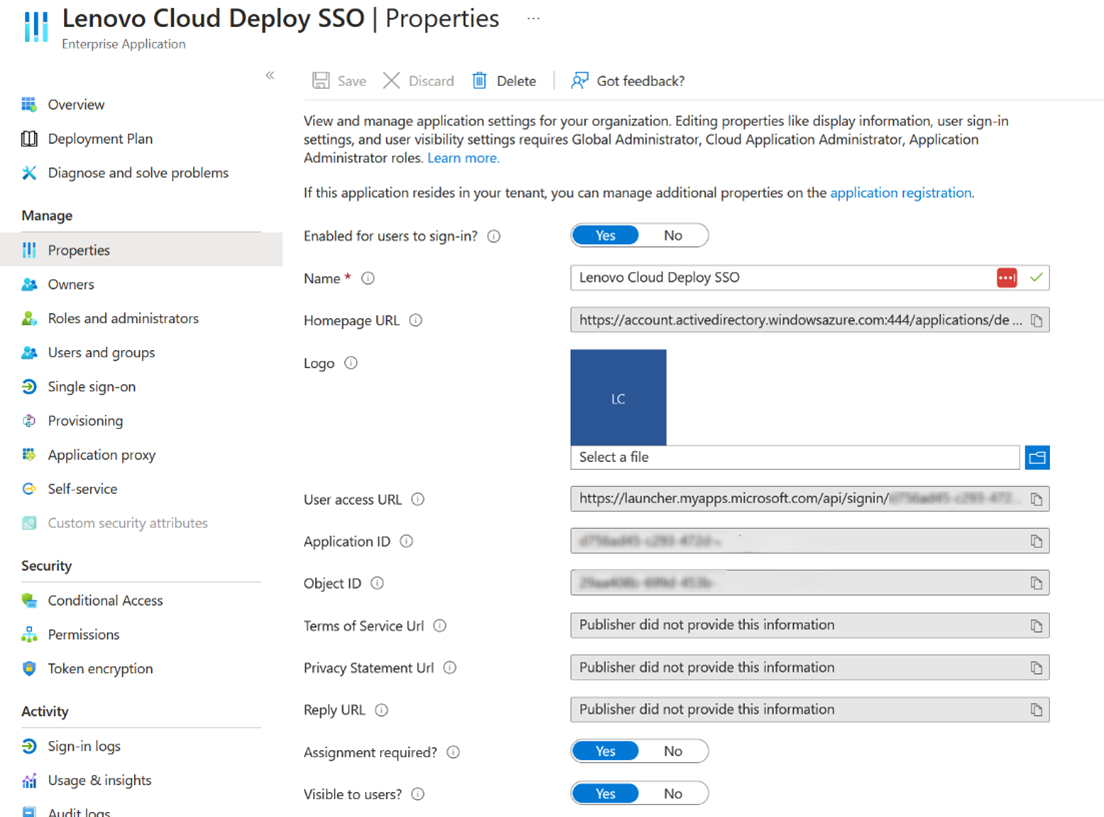
a. En la aplicación, bajo Manage, selecciona Properties.
b. Proporciona la user access URL a tu contacto técnico de LCD.