Sign in to LCD with another device
For enhanced authentication security options, LCD provides the ability to sign in to the application on a secondary device. This feature enables signing in using QR codes for camera-enabled secondary devices, or with a sign-in link if you prefer not to use the QR code.
Note
Have your device ready with a camera enabled to read QR codes.
Sign in using a QR code
Launch LCD and look up your account with your email address or account key.
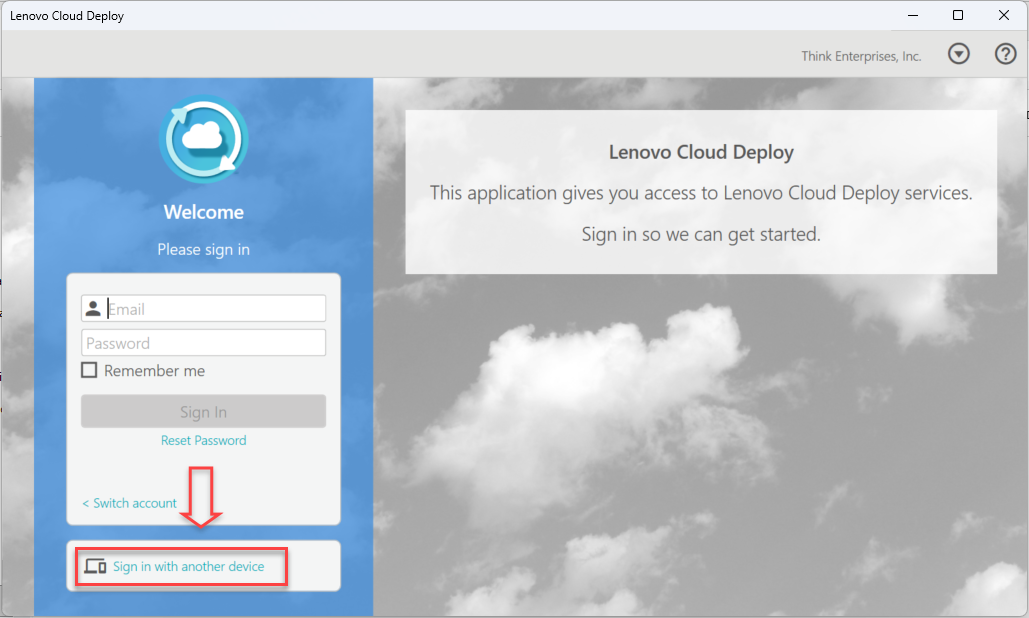
Click Sign in with another device.
A QR code displays, along with an alternative link to sign in on LCD’s website.
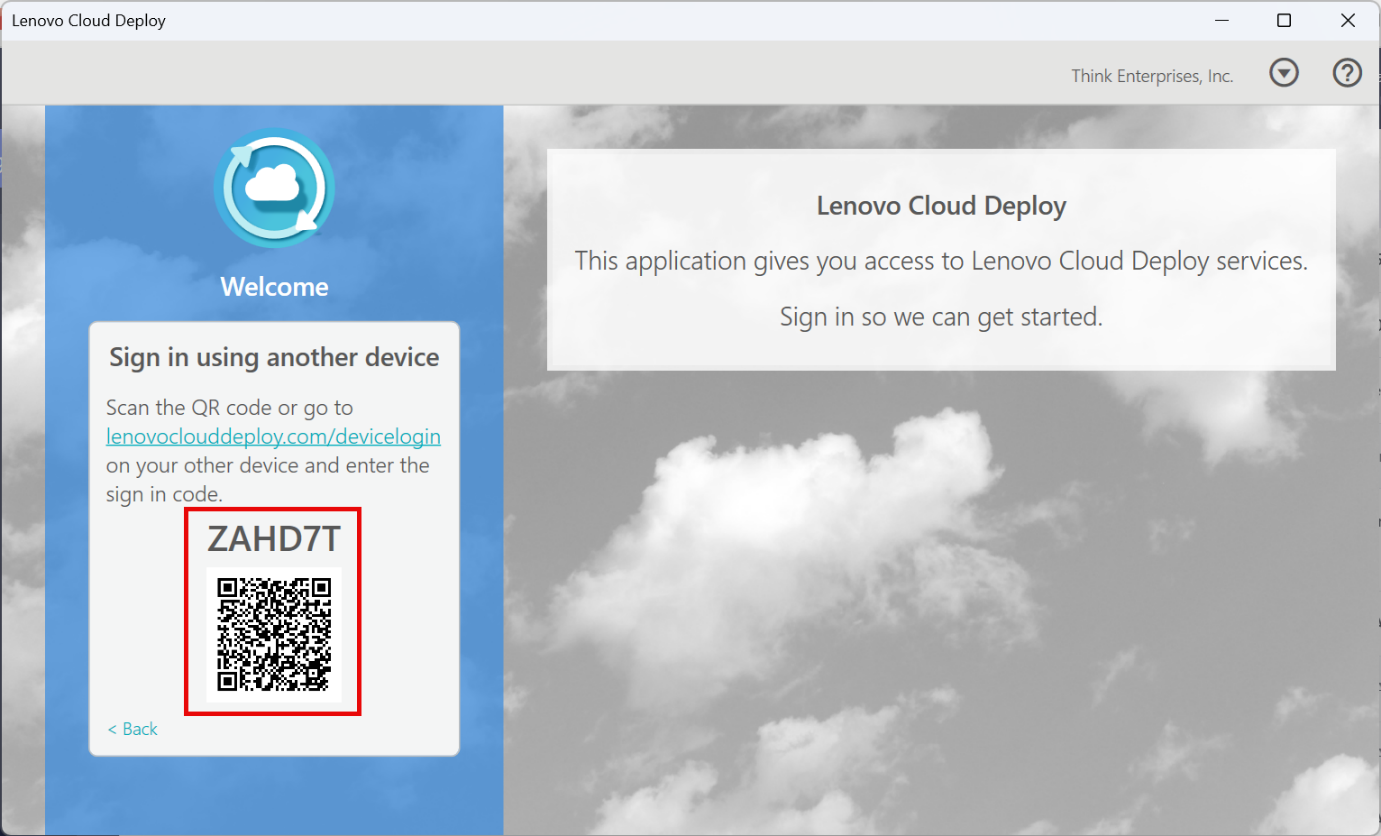
On your device, open your camera or QR code reader app and scan the QR code.
Tap the link that appears on your device screen. The LCD sign-in screen opens in a browser window on your device.
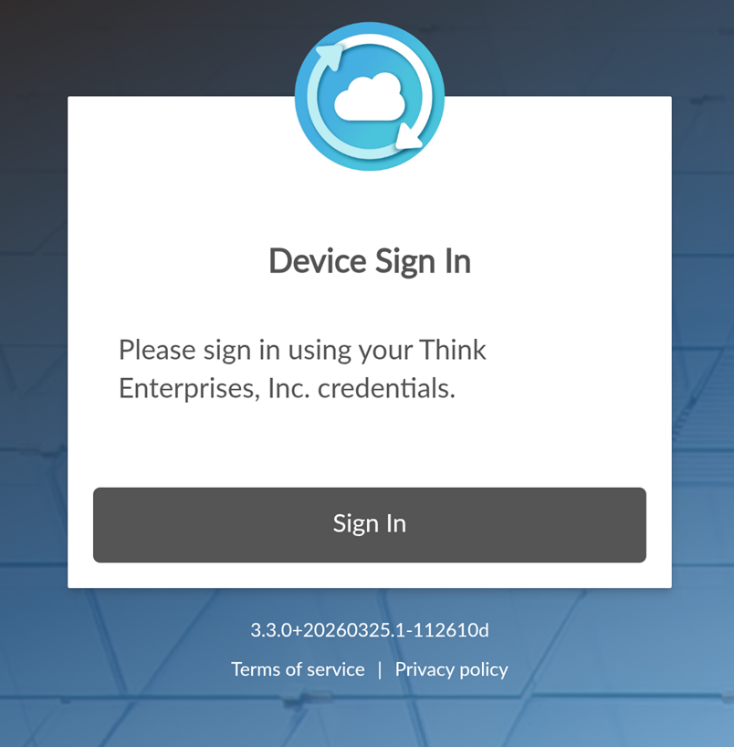
Sign in to LCD with your credentials.
A message displays on your device stating that the device is authenticated and you can close the browser window on your device. On your computer, LCD displays signed in on the home screen.
Generating a new QR code after sign-in failure
Once you generate a QR code to sign in to LCD on another device, the code is valid for 5 minutes. If the code expires before you can sign in to LCD, you must generate a new code to sign in.
If you receive an error message after attempting to sign in, you must generate a new code to sign in.
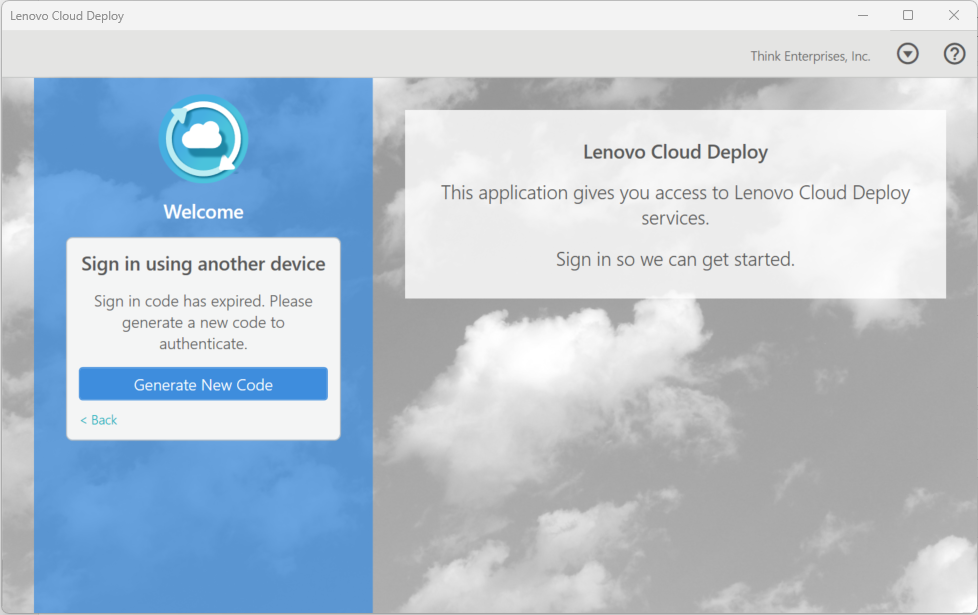
Click Generate New Code.
A new QR code displays.
Before the new code expires in 5 minutes, follow the scanning and sign-in instructions in Sign in using a QR code.