Sign in to the LCD website

To sign in to the LCD website:

  1. Use a web browser and navigate to lenovoclouddeploy.com.

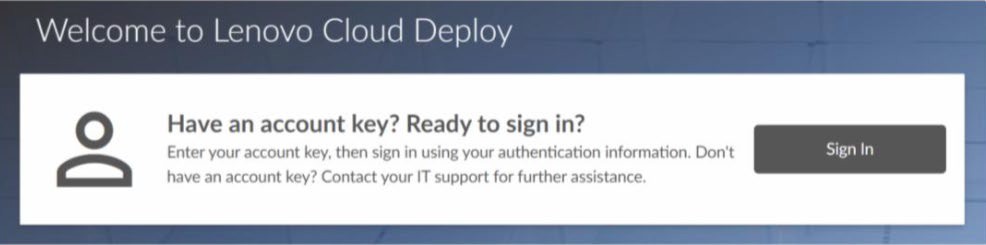
  2. Click Sign In.

    Screen detail of the LCD website welcome screen with black Sign In button.

  3. Enter your email address to identify your cloud account.

  4. Click Lookup.

    Note

    If you know the account key, you can sign in with that instead.
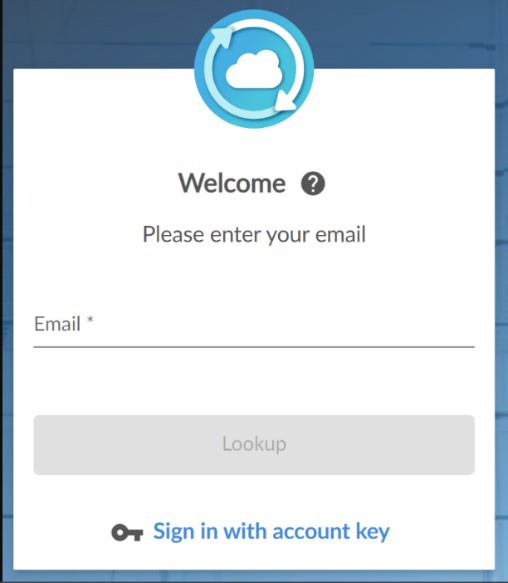
    Screen detail of the LCD website lookup screen with Email field, Lookup button, and Sign in with account key link.

  5. Enter your email address and password and click Login.
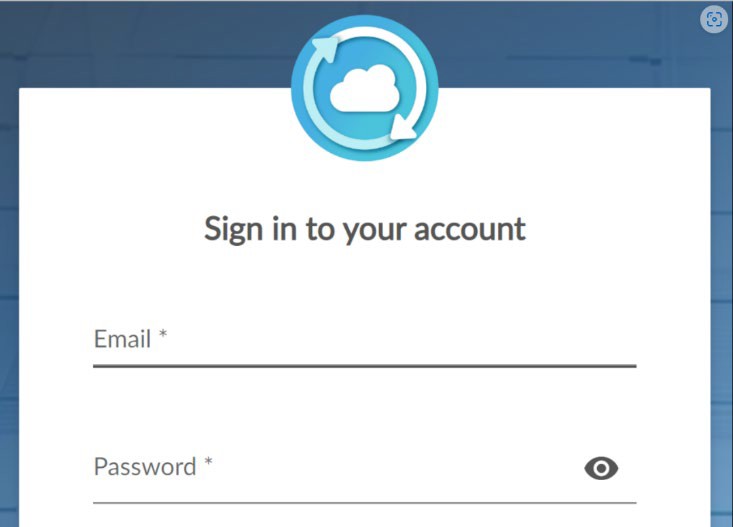
    Screen detail of the LCD website sign-in screen with Email and Password fields, eye icon to show or hide password, Forgot password link, Submit button, and Switch Accounts and Sign Up links.

  6. You may be prompted to enable two-factor authentication. Lenovo recommends enabling this feature by clicking Go to preferences.
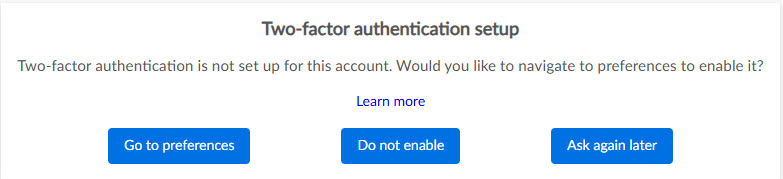
    Screen detail of the Two-Factor Authentication Setup screen with a Learn More link and blue Go to preferences, Do not enable, and Ask again later buttons