Sign in to the LCD client
Once you launch the LCD application, depending on how your administrator has configured your LCD access, you will have one of four sign-in experiences:
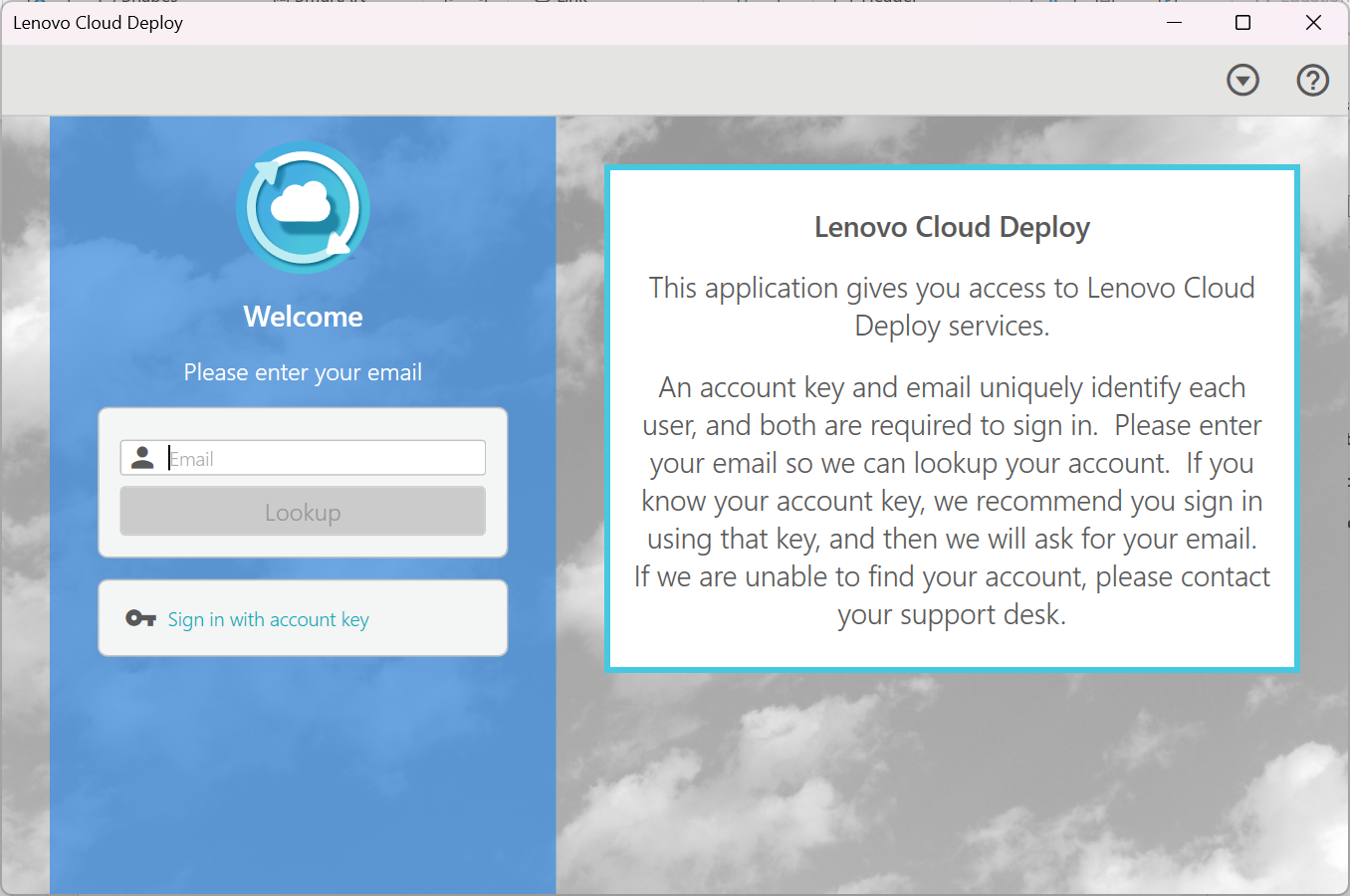
Account lookup
This screen appears if the LCD client was installed without a valid account key. Enter your email address to identify your LCD account. If you know the account key, you can sign in with that instead by clicking Sign in with account key.
Enter your email address and click Lookup. When your email address is located, you are prompted to enter your password.
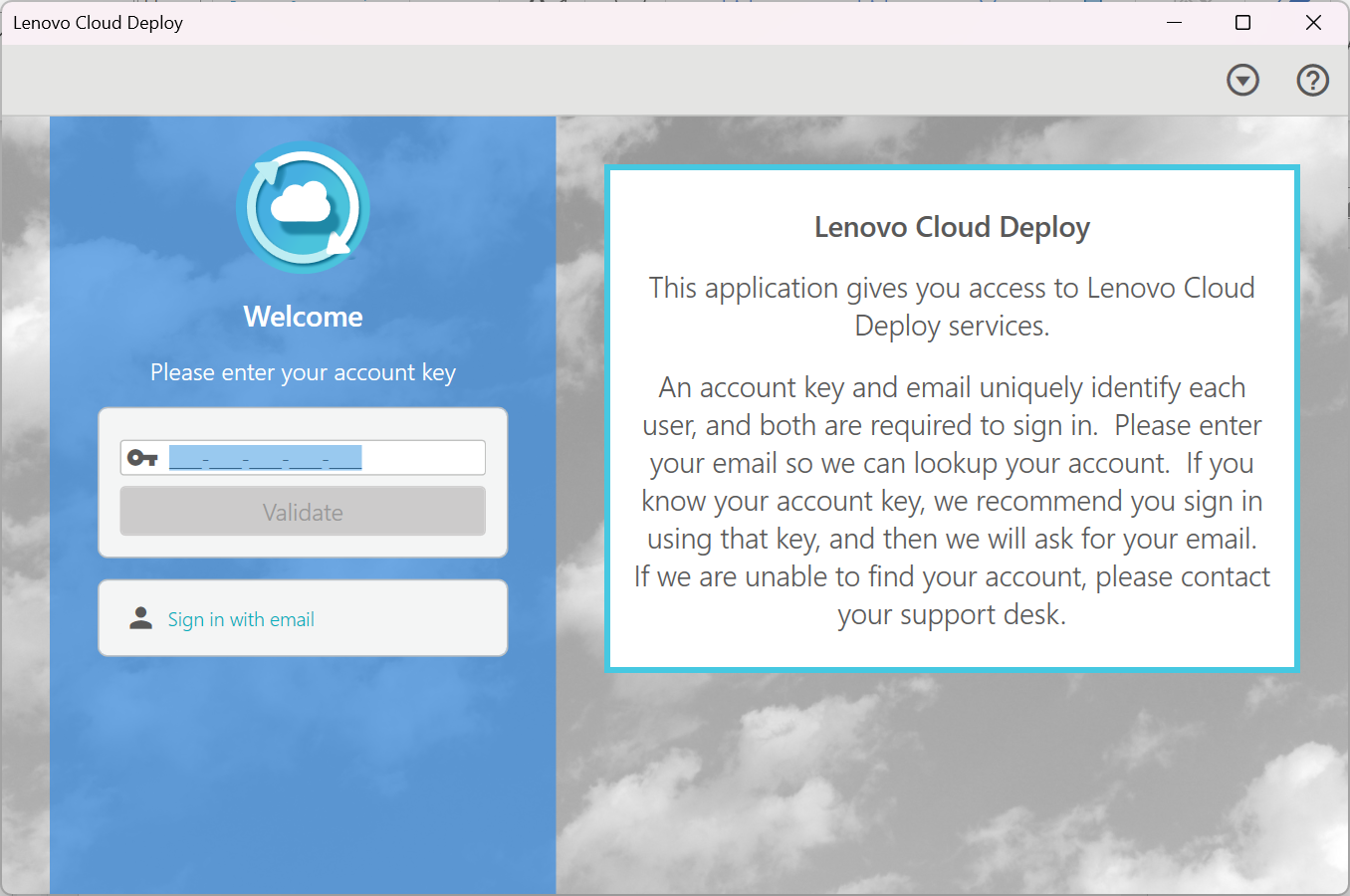
Account key validation
This screen displays if you clicked Sign in with account key on the main account lookup screen. Enter a valid account key and click Validate.
If you are on this screen and choose to sign in with your email address instead, click Sign in with email.
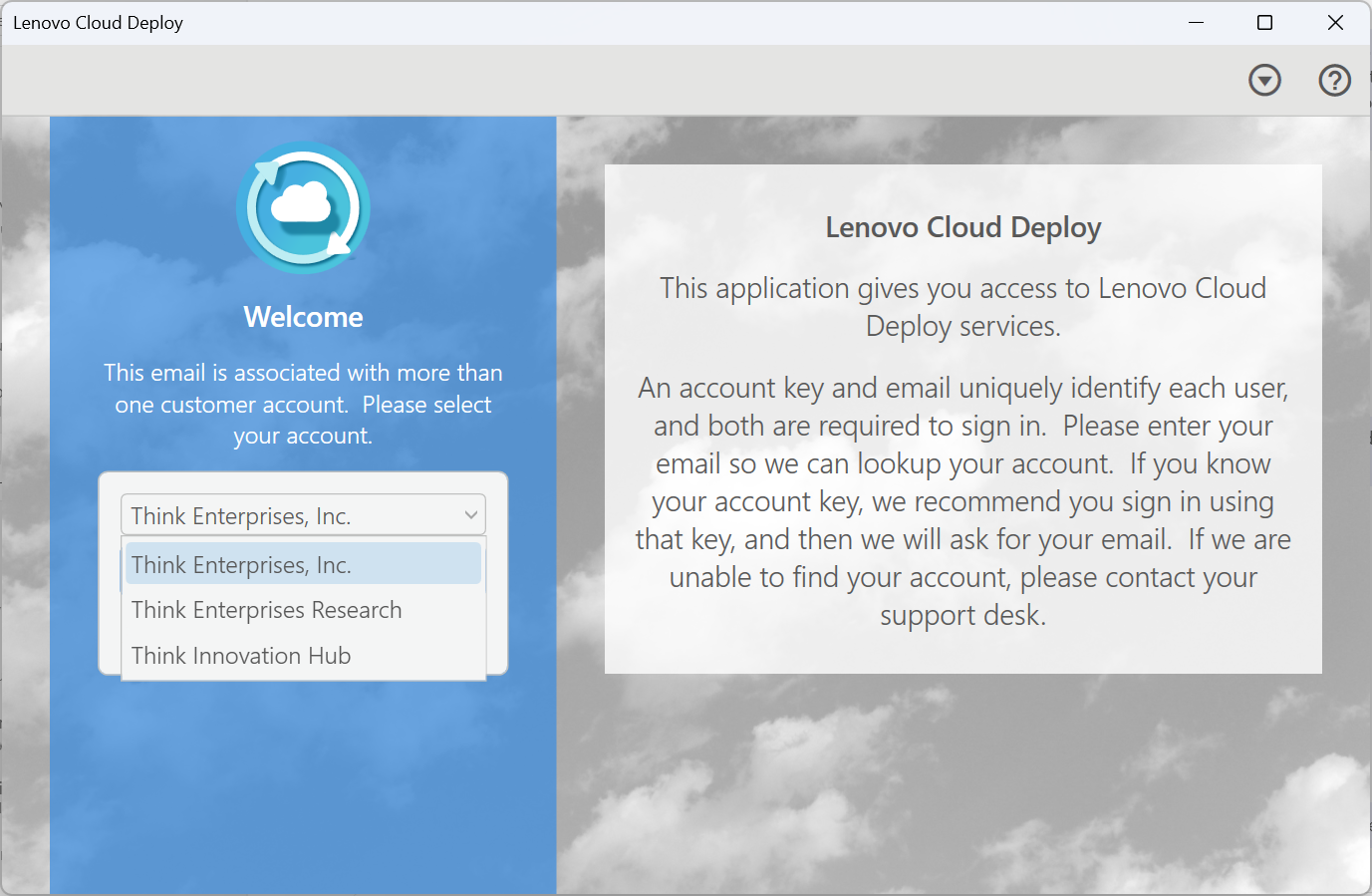
Multiple accounts associated with email address
If your login is associated with multiple LCD accounts, select the one you want from the dropdown menu when prompted.
Accounts with geolocation restrictions
If you see a message that some accounts are unavailable due to your location at the time you sign in, this is due to geolocation restrictions that your organization has applied in the GEO Fencing settings at lenovoclouddeploy.com.
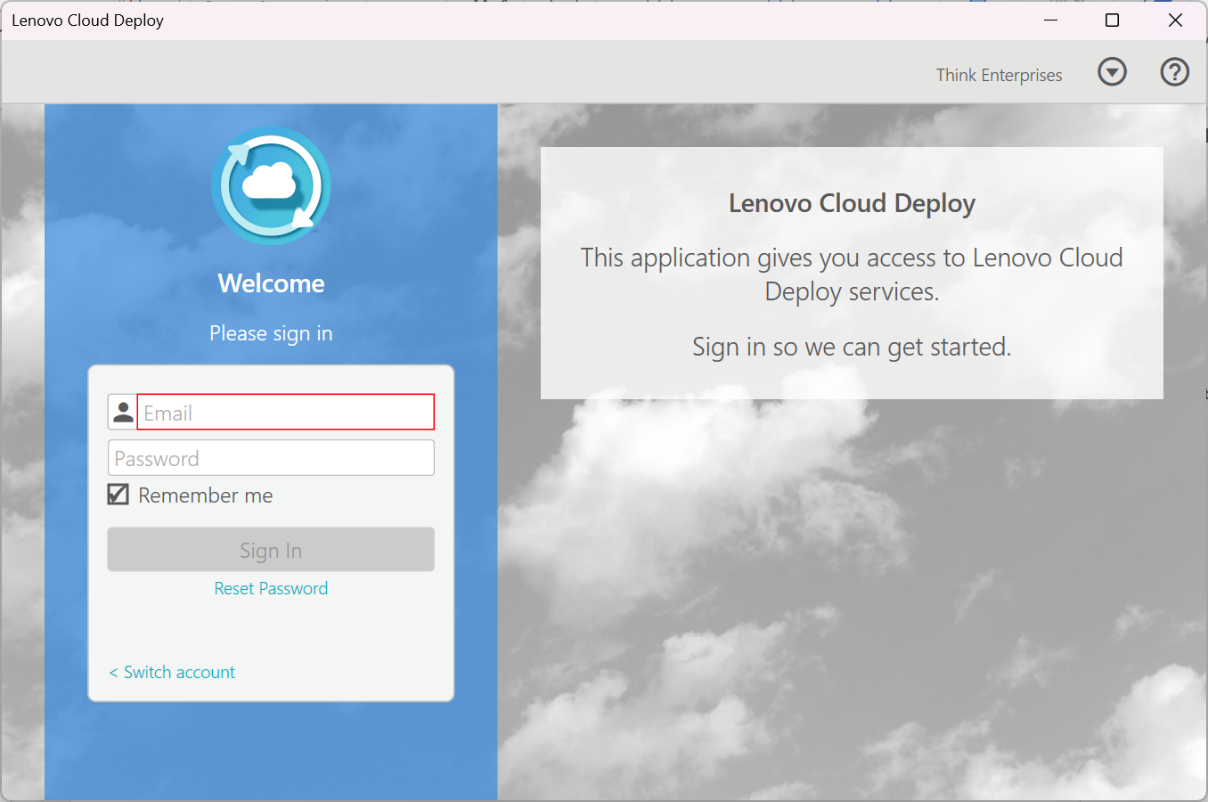
LCD account
Sign in with a specific LCD account created by your administrator.
Single sign-on account
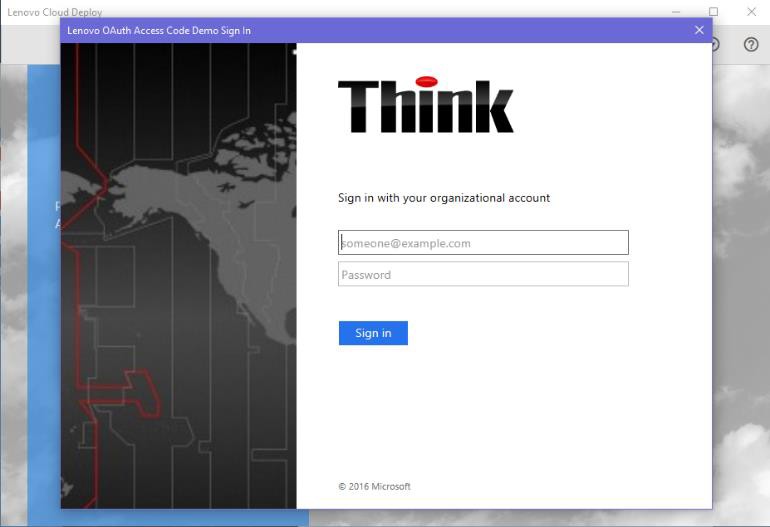
If your organization has single sign-on configured, sign in with your corporate account, which is a common user ID and password to access multiple applications within your company’s network (for example, email, computer sign-in, etc.). A separate popup window prompts you to enter your user ID and password, as in the following example.
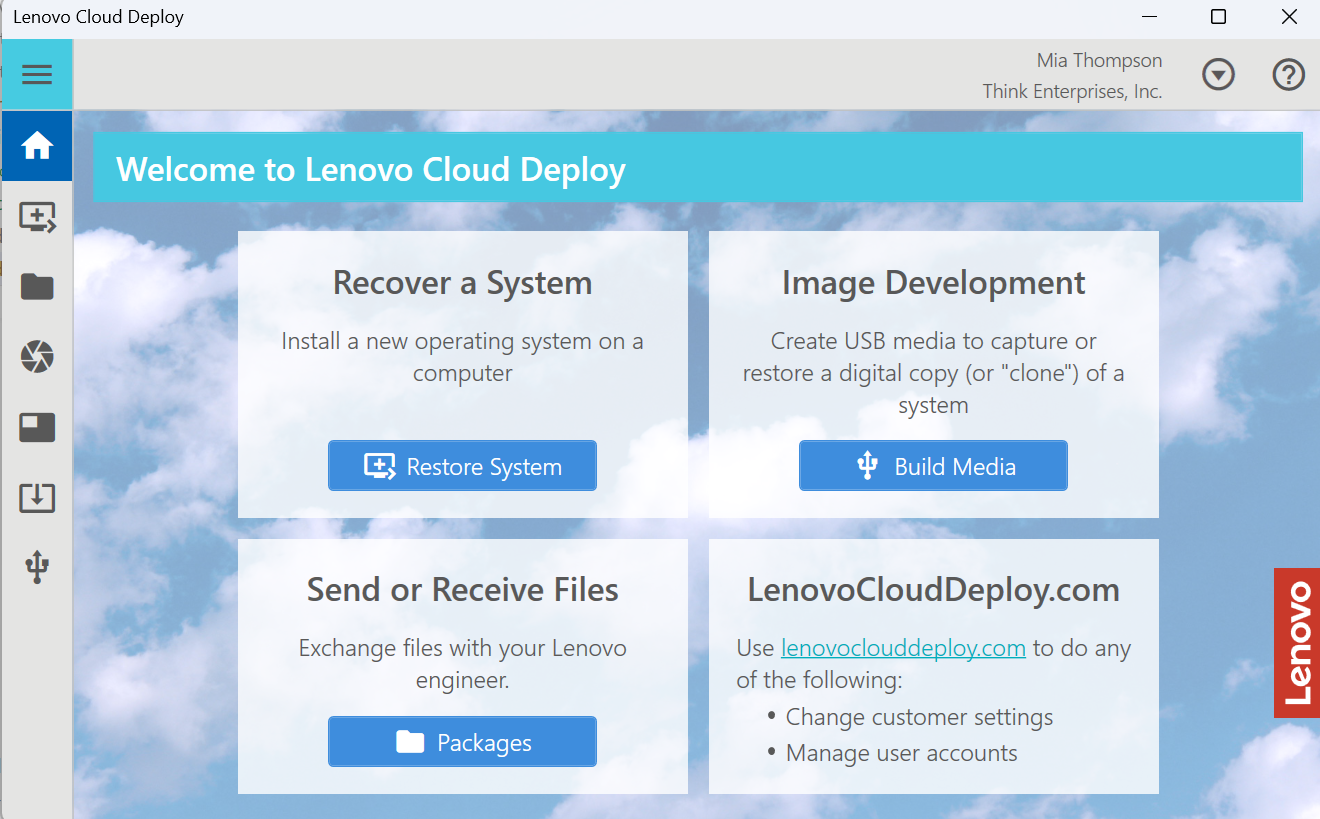
LCD home screen
Once you have successfully signed in to LCD, the application’s Home screen displays.