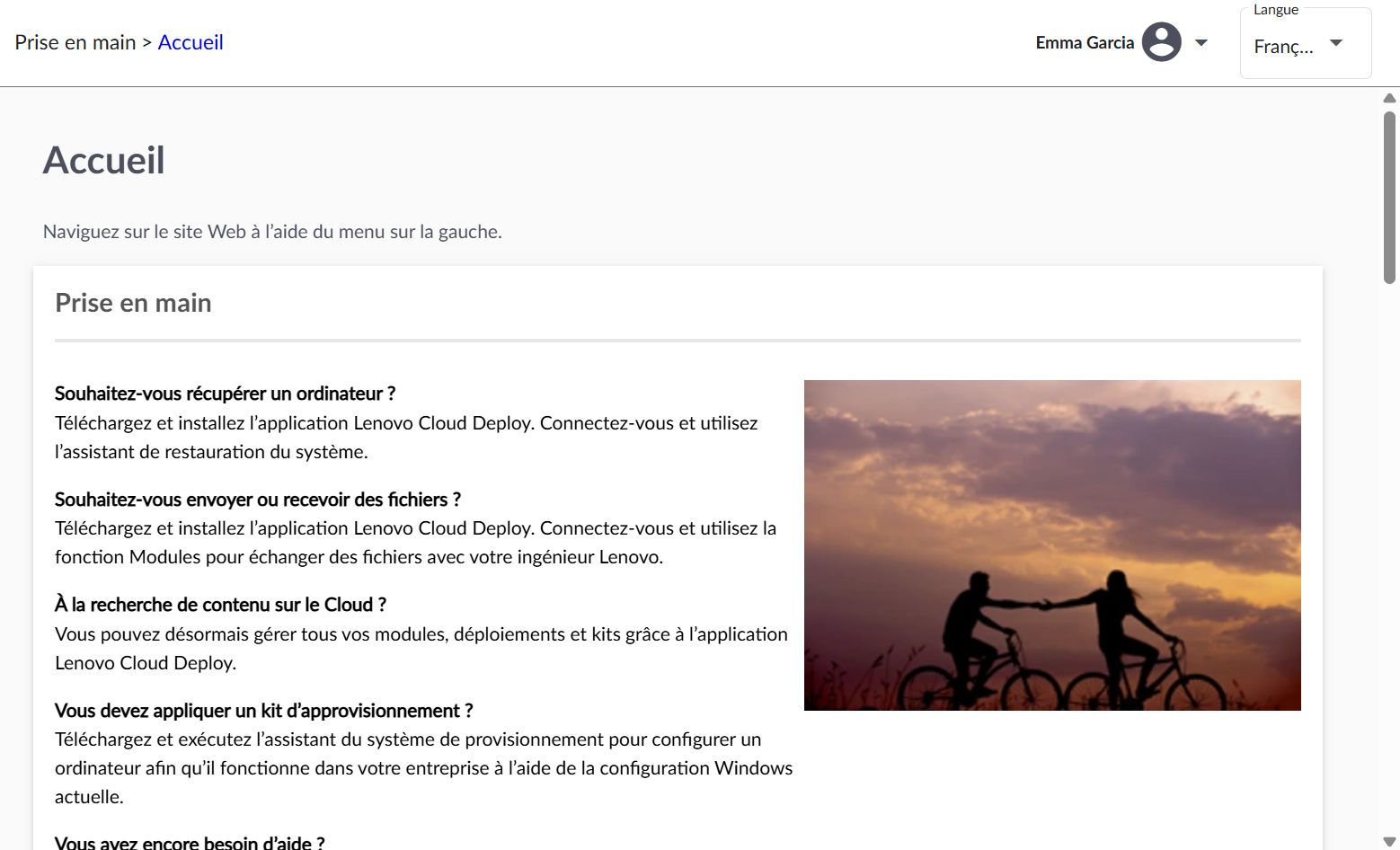
Multilingual support
The LCD client and website support the following languages:
- U.S. English
- Simplified Chinese
- Traditional Chinese
- French
- German
- Italian
- Japanese
- Brazilian Portuguese
- Spanish
To change the interface language for the client and website, review the following instructions.
Changing languages in the LCD client
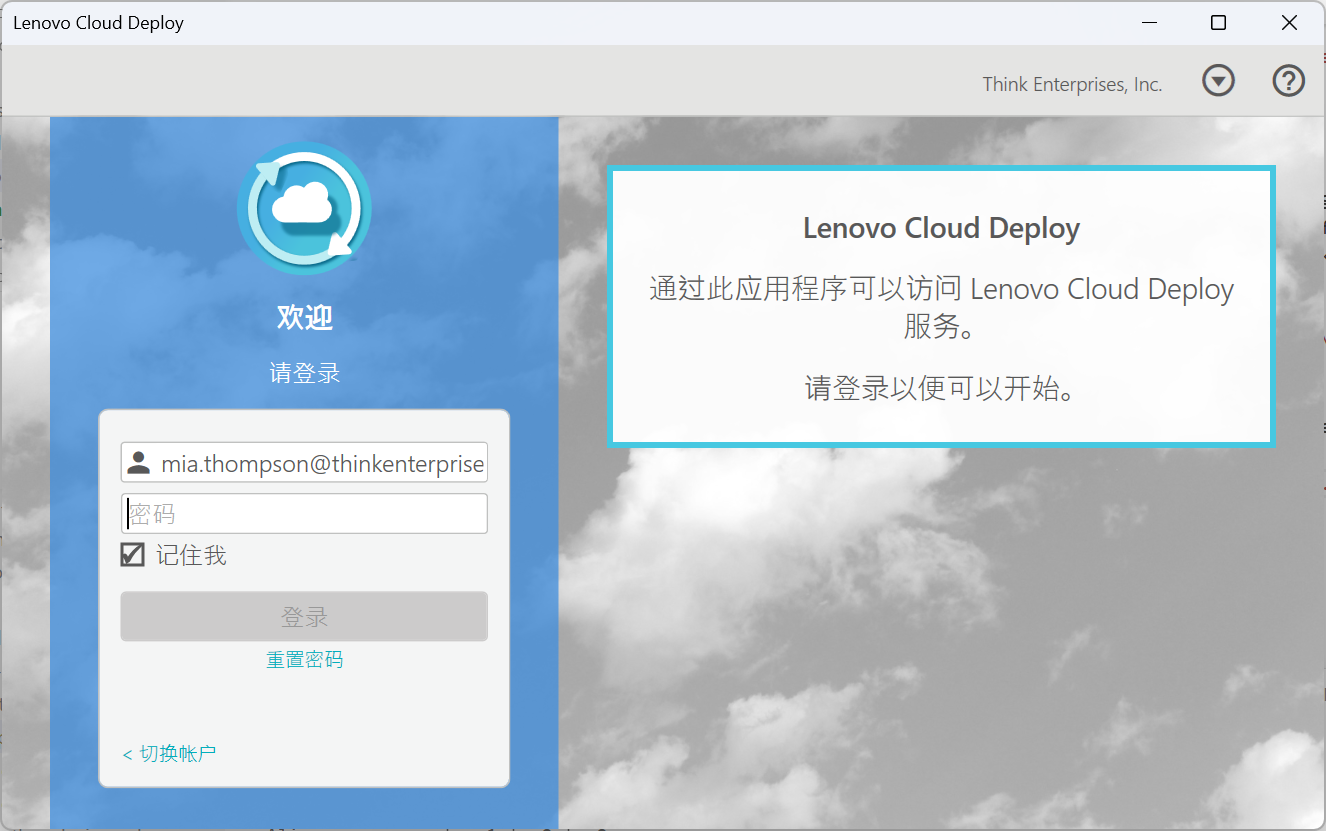
When you sign in to a newly installed LCD client, the default language used in the interface is U.S. English. When you select a different language, the client restarts and launches with the interface displaying the interface in the selected language. This language is used by the LCD client until it is changed to a different language. When you update the LCD client to a new version, your selected language will continue to be used in the client interface.
The option to change the language is in the top taskbar of the LCD client, so the language can be changed from any part of the client. Bear in mind that the client will restart when you change the language.
To change the language used in the LCD client:
Click the down arrow to the right of your user and account names.
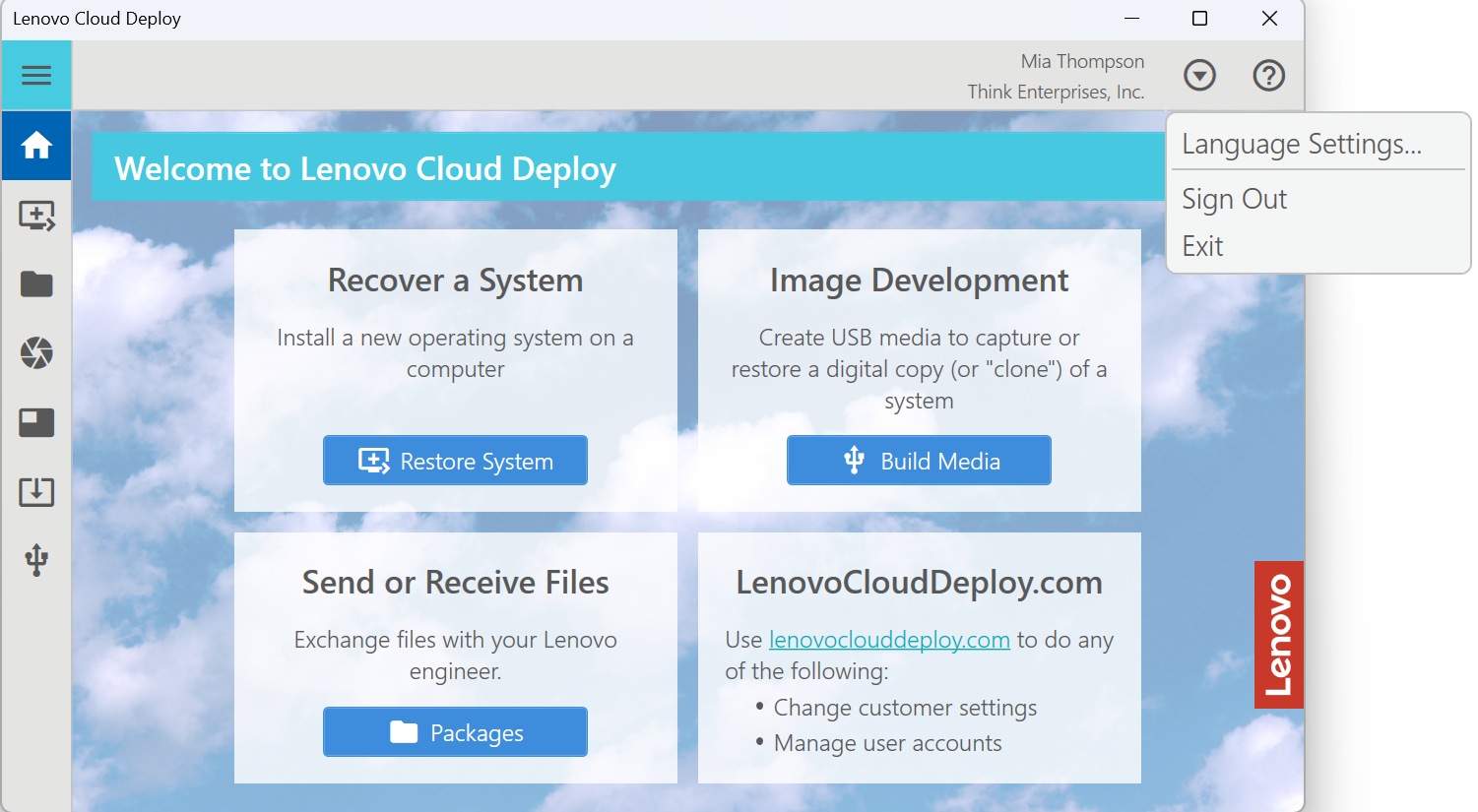
Click Language Settings….
The Choose a display language screen displays.
Click the desired language.
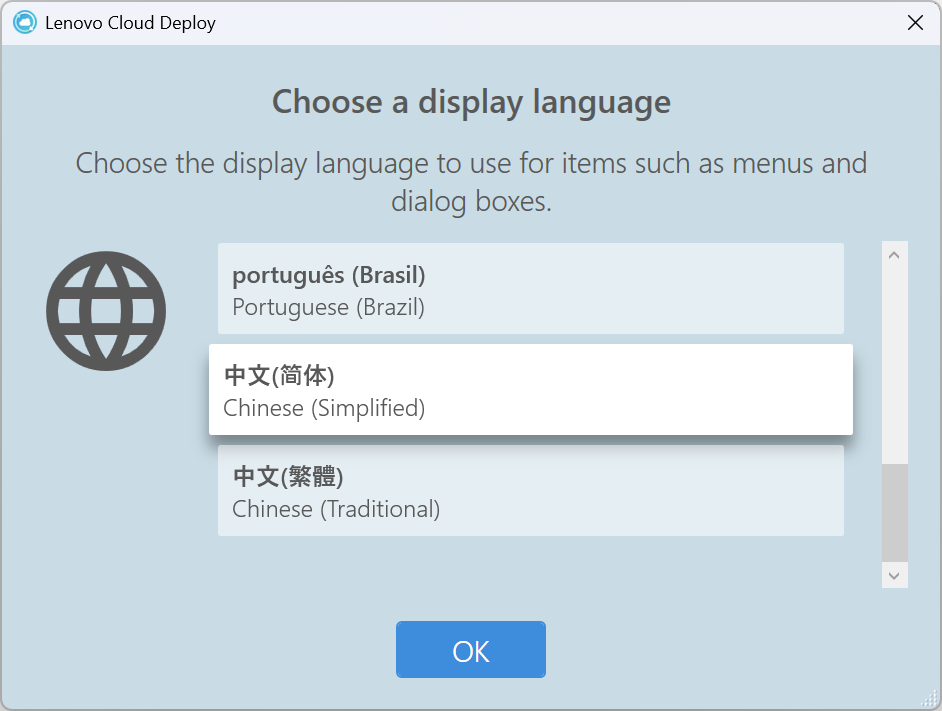
Click OK.
A message displays advising you that the client must restart for your language change to take effect. Click Restart Now to restart the client immediately, or Postpone to defer your language change until after you have exited the client. For this example, we will click Restart Now.
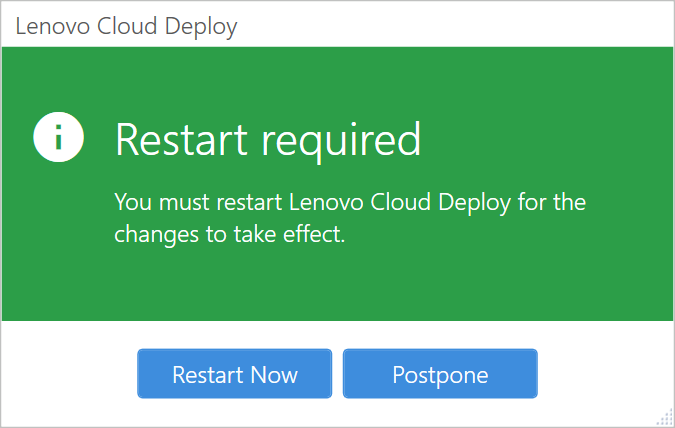
The client exits and automatically restarts, displaying the new language in the client interface.
Changing languages in the LCD website
As with the LCD client, the default language used in the LCD website is U.S. English, overriding your browser language settings. When you select a different language in the dropdown menu, the website page reloads and displays in the selected language. This language is used by the LCD website until it is changed to a different language. When you sign out of the LCD website, the language you selected will continue to be used when you sign back into the website.
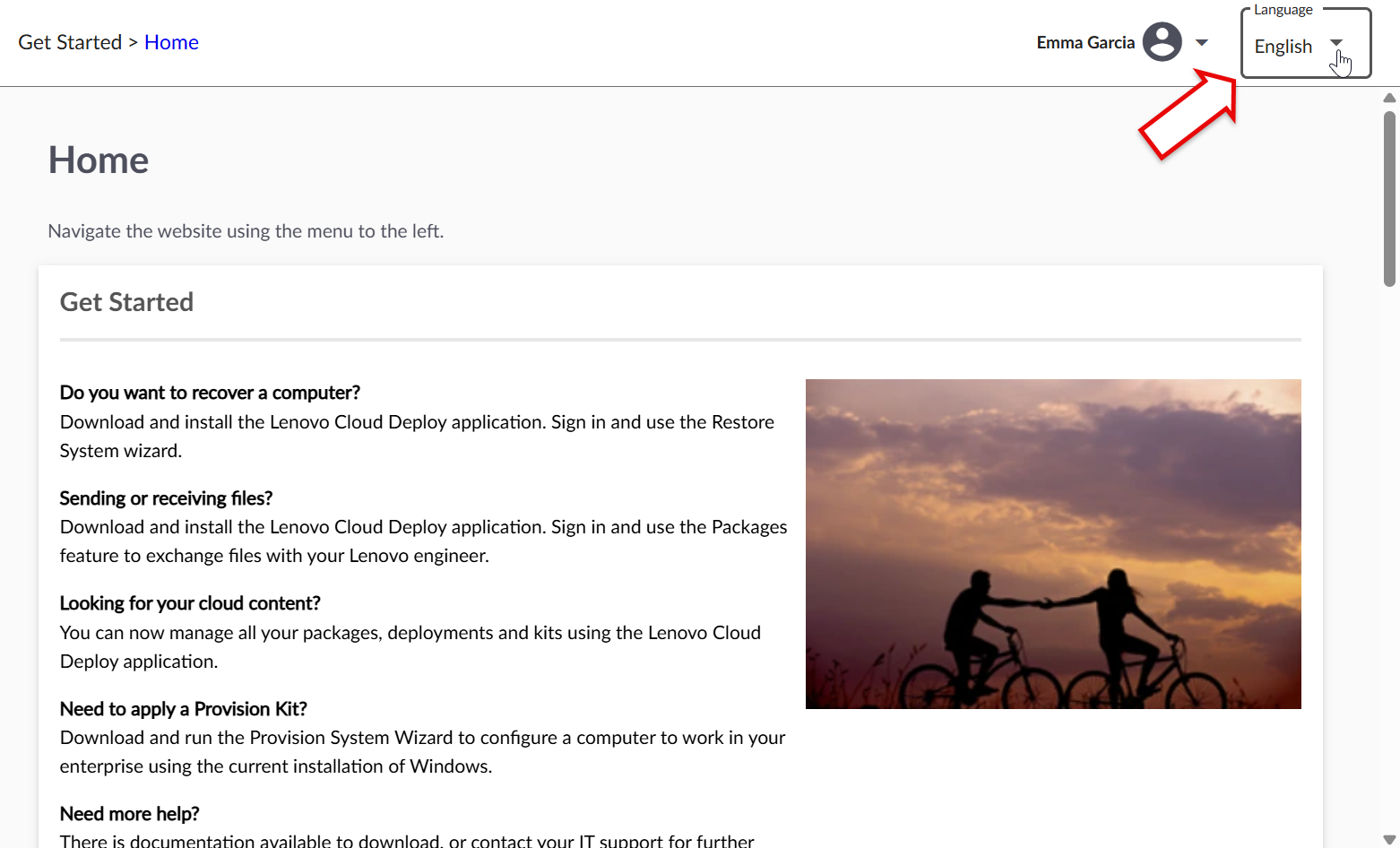
The option to change the language is in the top taskbar of the LCD website, so the language can be changed from any page in the website.
To change the language used in the LCD website:
Click the Language dropdown to the right of your username.
The language options display.
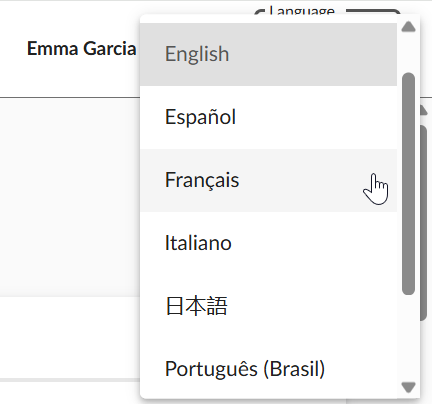
Click the desired language.
The page reloads and displays in the selected language.