Accessibility
LCD integrates Windows accessibility features to optimize the user experience for users with disabilities.
High Contrast Mode
LCD supports High Contrast Mode. When enabled, High Contrast Mode overrides LCD’s default color scheme to apply a high-contrast scheme to increase readability for users with vision assistance needs.
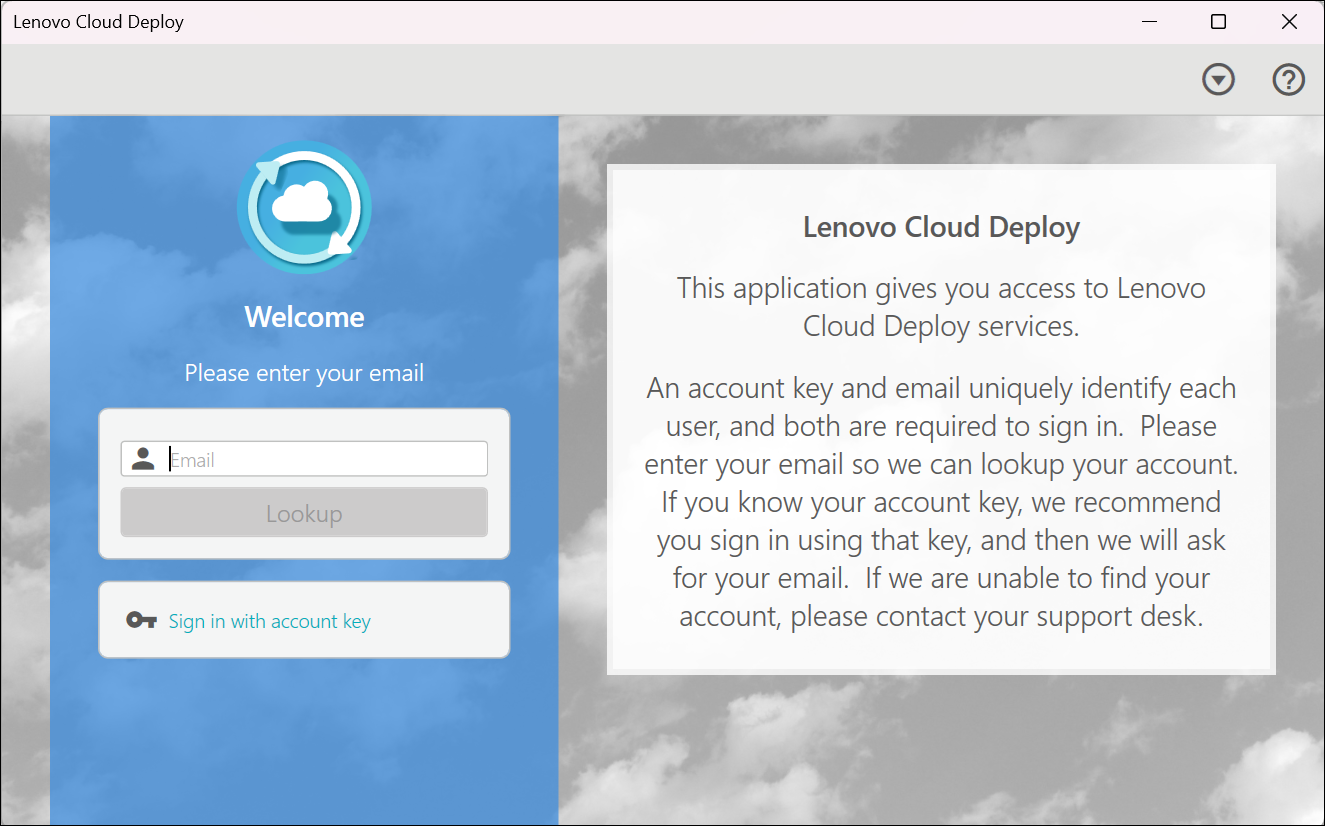
LCD sign-in screen with its default color scheme:
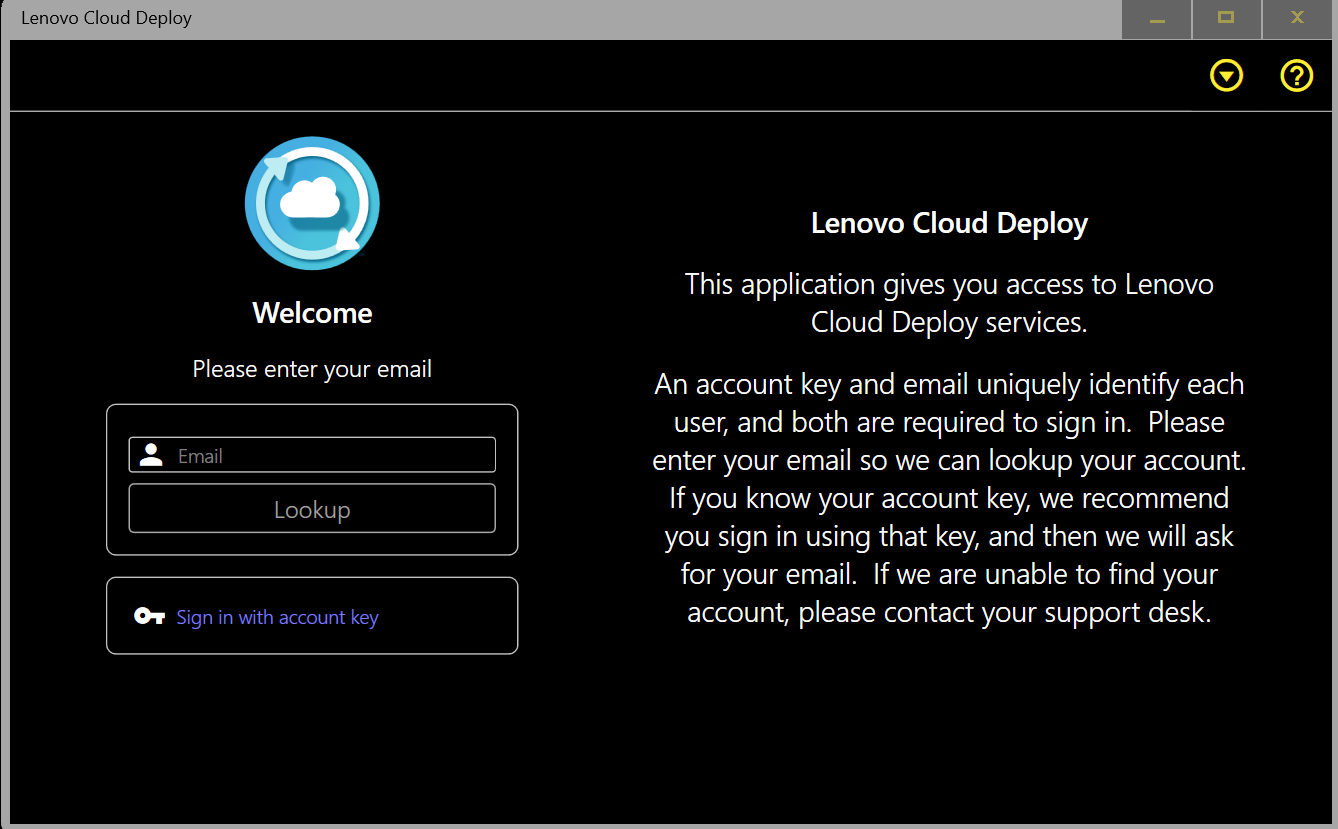
LCD sign-in screen with High Contrast Mode enabled:
If you already have High Contrast Mode enabled in your computer’s Windows settings before logging into LCD, LCD will inherit that setting and apply your selected high-contrast color scheme to the application without requiring you to take any additional action.
If you are in the LCD boot menu and you to enable High Contrast Mode, perform the following steps.
Note
See LCD boot menu options for details on accessing the boot screen.
Click the hamburger menu
 in the lower left corner of the screen.
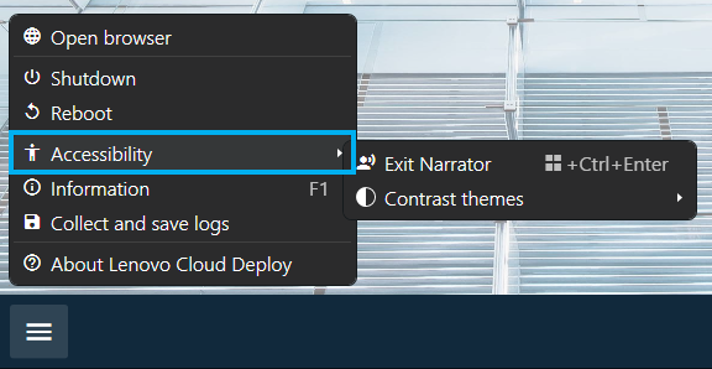
Select Accessibility > Contrast themes.
Select a contrast theme.
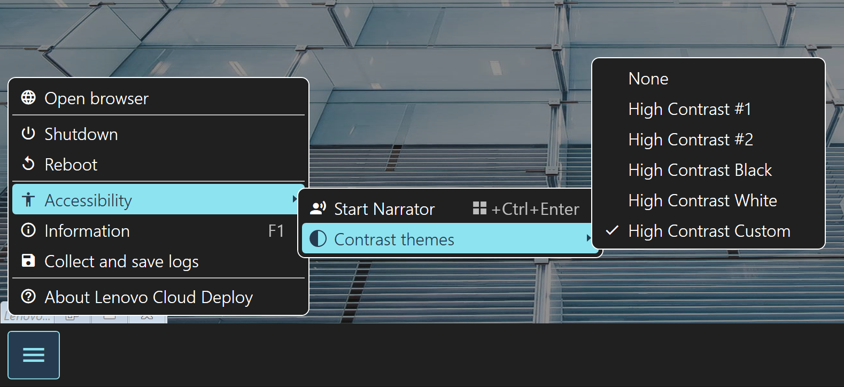
For more information on High Contrast Mode, refer to your Windows documentation.
Narrator
LCD supports the Windows Narrator screen reader. If you already have Narrator enabled in your computer’s Windows settings before logging into LCD, LCD will inherit that setting and run Narrator in the application without requiring you to take any additional action.
Note
Narrator is not available for LCD in non-Lenovo systems. Other variables may affect Narrator availability, such as support for your sound device or language. Refer to Microsoft’s Narrator documentation for details.
If you are in the LCD boot menu and you need to start Narrator, perform the following steps.
Note
See LCD boot menu options for details on accessing the boot screen.
Click the hamburger menu
in the lower left corner of the screen.To start Narrator within LCD, select Accessibility > Start Narrator.
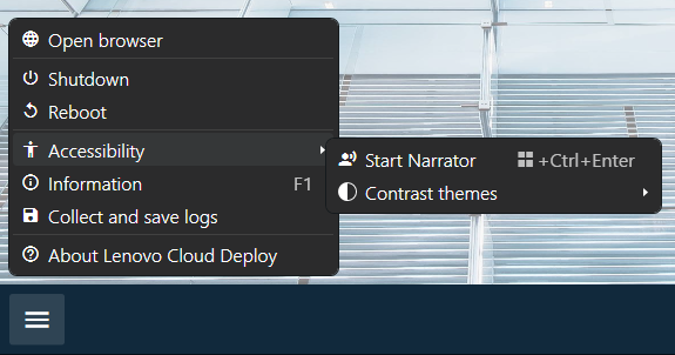
To stop Narrator within LCD, select Accessibility > Exit Narrator.
For more information on Narrator, refer to your Windows documentation.