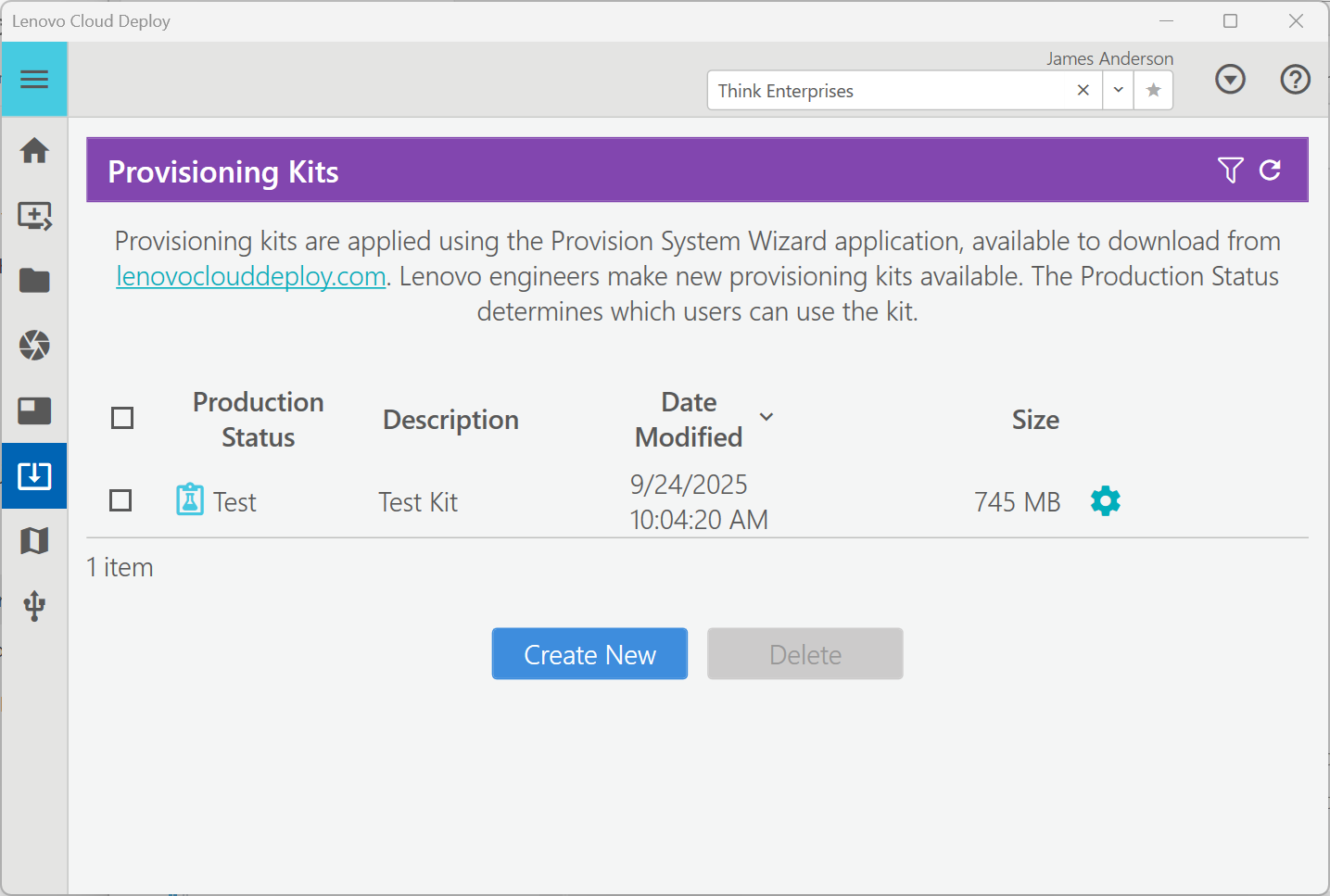
Provisioning kits
A provisioning kit installs a setup assistant wizard where a user answers a few easy questions, and in minutes the system is customized. The Provision System Wizard can automate tasks from joining domains and creating user accounts and email accounts to setting up printers and regional settings to data migration.
As a user, you do not create your own provisioning kits. Instead, you collaborate with a Lenovo ITC engineer by uploading your applications content to the cloud and communicating requirements for the solution. The engineer then builds a provisioning kit and posts it to the Lenovo Cloud for you to download and test.
To navigate to the Provisioning Kits screen, click the Provisioning Kits icon in the left navigation pane.
Note
Only users with Engineer roles can modify the description and the production status of provisioning kits that have been created for them.
How roles affect provisioning
Your ability to apply a provisioning kit depends on its production status. When provisioning kits are displayed in the application, an icon beside each provisioning indicates its production status, as follows:
| Icon | Production Status | Permitted Roles |
|---|---|---|
 | Test | Customer Engineer Customer Tester Deployment Engineer Deployment Tester |
 | Production | Customer Engineer Customer Tester Customer User Deployment Engineer Deployment Tester Deployment User |
 | Evaluation | Customer Engineer Customer Tester Deployment Engineer Deployment Tester |
Delete a provisioning kit
When deleting a provisioning kit, it is essential that you select the correct provisioning kit to delete. To help you do this, LCD includes filtering for provisioning kits.
Hardware filtering occurs before the list of available provisioning kits is shown, so you only see kits which are available for selection.
Note
Only users with Engineer roles can delete provisioning kits.
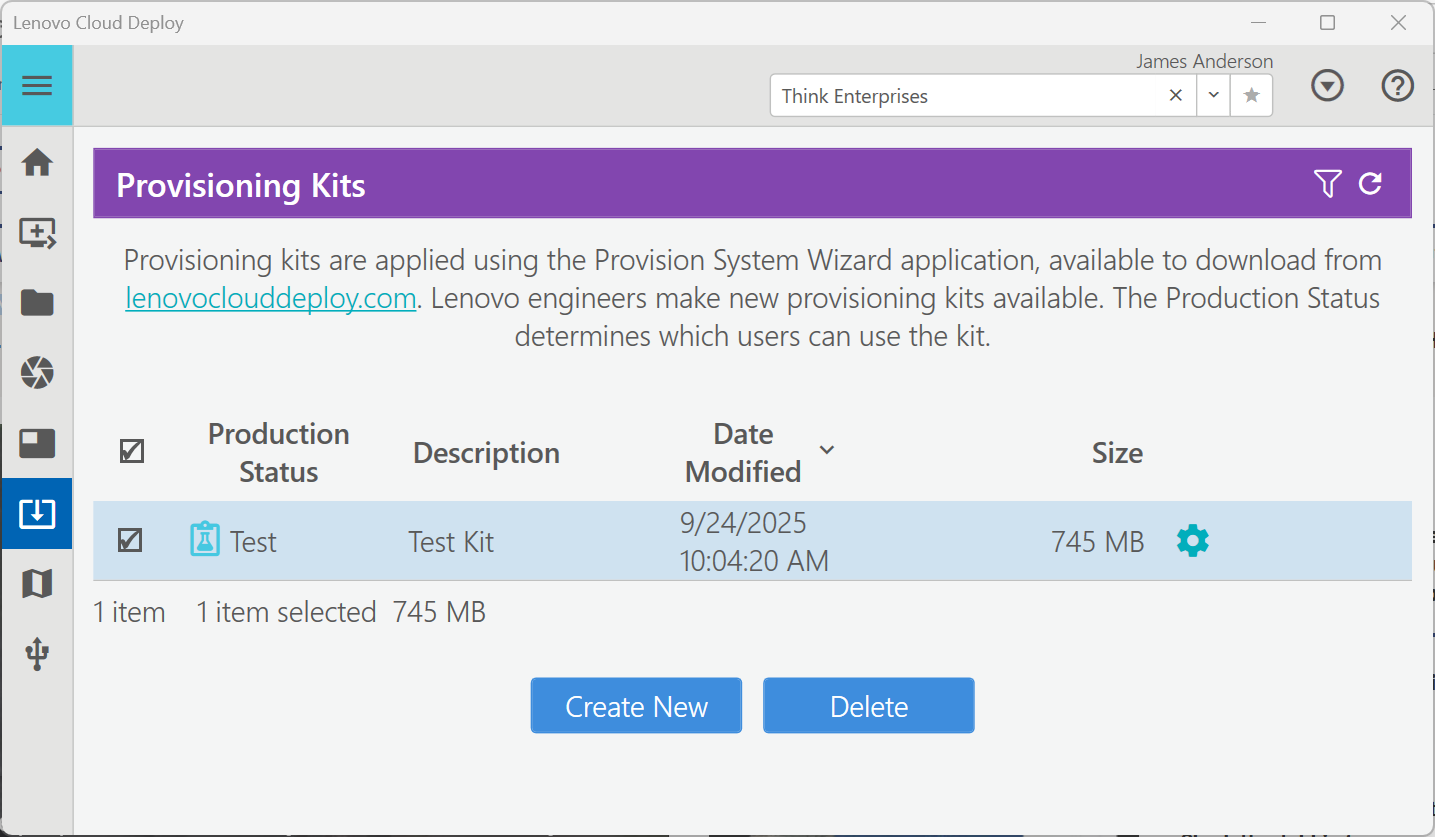
Select the provisioning kit(s) to be deleted.
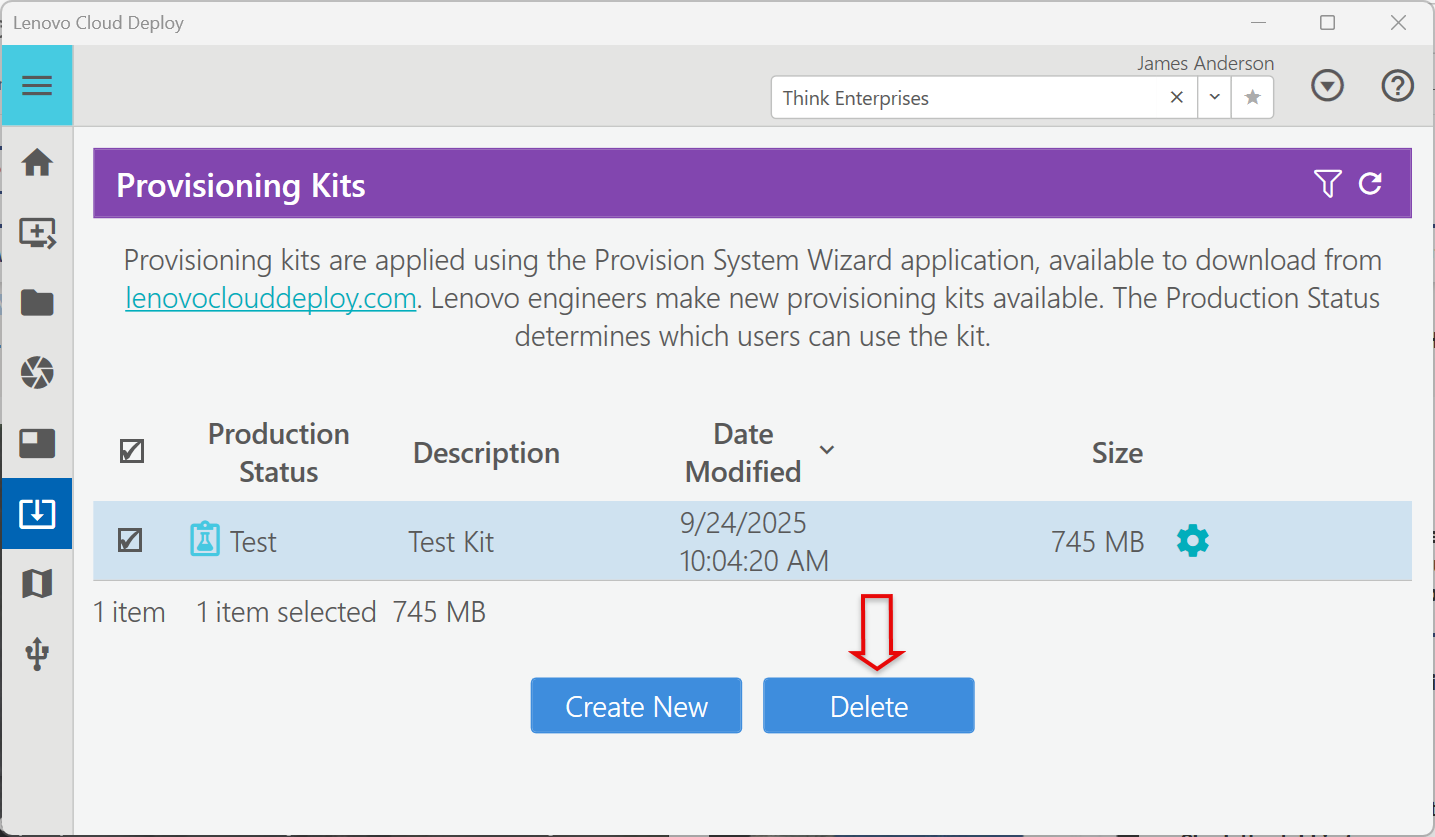
Click Delete.
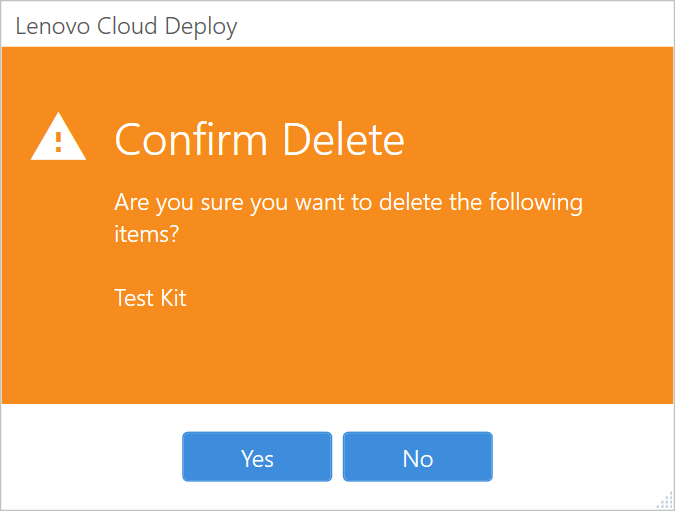
To confirm that you want to delete the selected items, click Yes.