Deployments
Lenovo’s “factory” deployment system is a proprietary, advanced, and customizable process for preparing a solution or computer for first-user login. A deployment includes image content, but also can support additional requirements like encryption, service-partition creation, First Boot Services, and so on. As a user, you do not create your own deployments. Instead, you collaborate with a Lenovo ITC engineer by uploading your image’s content to the cloud and communicating requirements for the solution. The engineer then builds a deployment and posts it to the Lenovo Cloud for you to apply to a system using the Restore System feature.
Lenovo’s deployment process is highly flexible and can support whatever method you choose to provide your solution. Lenovo can build your deployment from a single image (created by LCD or a WIM file created using Microsoft’s Deployment Image Servicing and Management tools) or from individual building blocks (drivers, applications, and operating-system components) uploaded as packages.
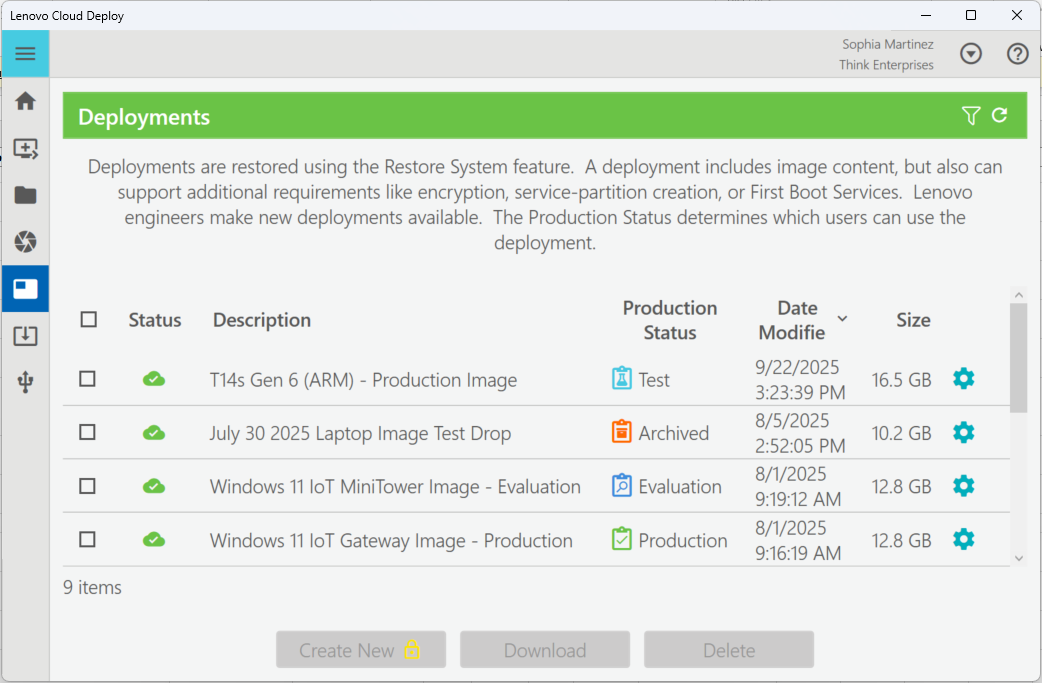
To navigate to the Deployments screen, click the Deployments icon in the left navigation pane.
Note
Only Lenovo engineers can create new deployments. Customer engineers can modify the description and the production status of deployments that have been uploaded for them.
Deployment filtering
Note
Deployment filters are available to users with the following roles: Site Engineer, Customer Engineer, Customer Tester (view only).
When restoring a system, selecting the correct deployment to restore is essential. LCD’s deployment filtering allows you to display only the deployments that satisfy the filters; for example, a deployment that uses only MTM.
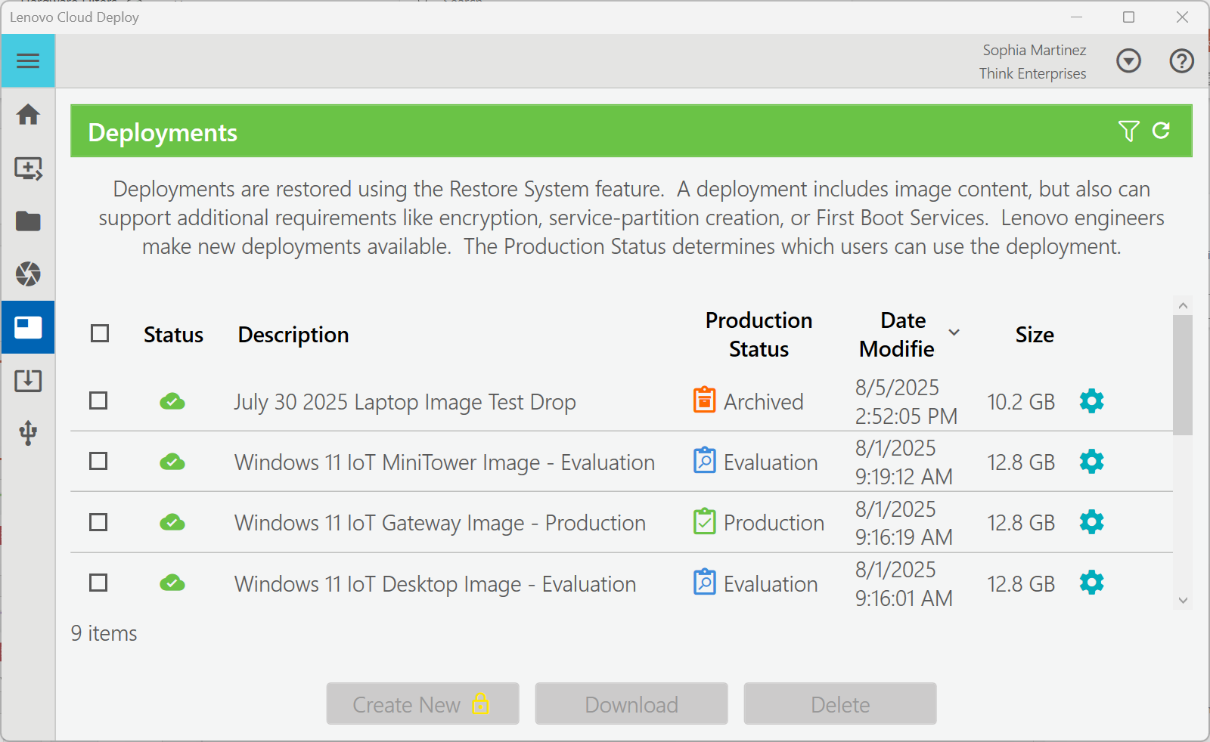
The following image shows a deployment screen with multiple deployments available.
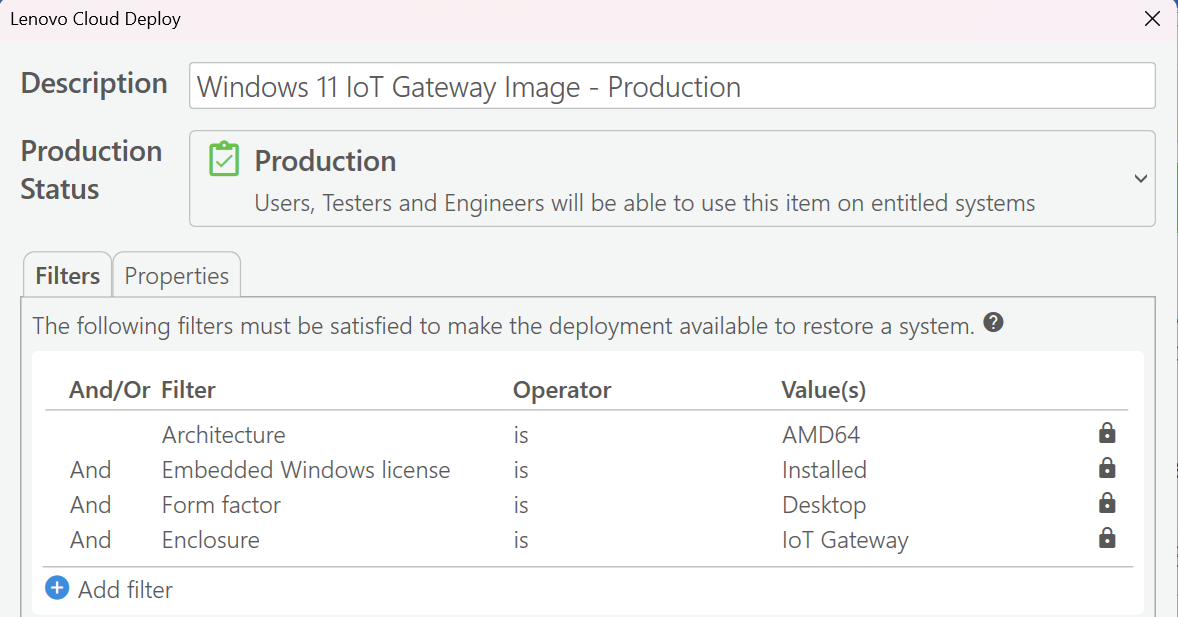
Click the gear icon to open the properties window. The Filter tab displays by default.
Click the help icon to see additional information on filters.
Required and additional filters
There are two types of filters: required and additional.
The required filters are embedded in LCD and cannot be modified. These have a lock symbol to show that a user cannot amend them. Changes to required filters require a new deployment to be created by the Lenovo Technical Contact.
Additional filters can be added to only allow the deployment for certain scenarios. To use additional filters, click the plus symbol, select whether it is an And/Or, the Filter type, and set the Operator and Value as Required.
The filters available vary depending on your system. They match the System Information for your system.
The operators available for each filter also differ depending on your system. Some operators use a pick list, and others require entering a string.
These filters can be amended or deleted.
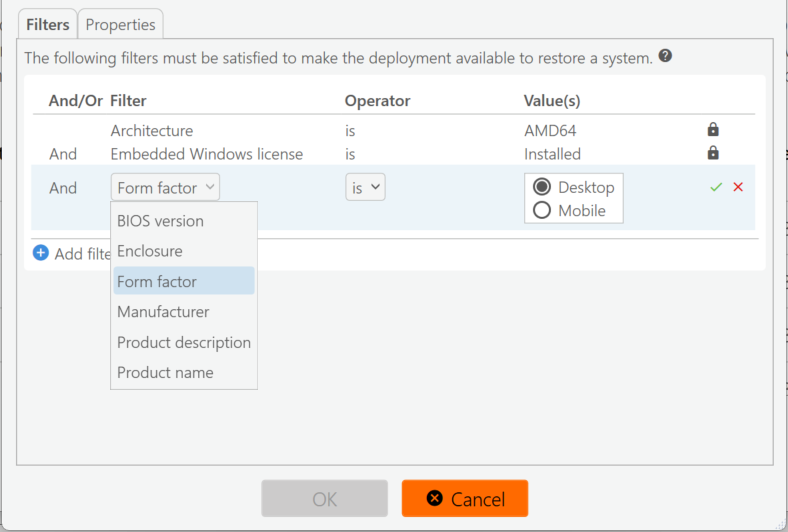
The Include all additional filters slider allows you to select all additional filters for the deployment. This option becomes available when there is more than one additional filter added to the deployment.
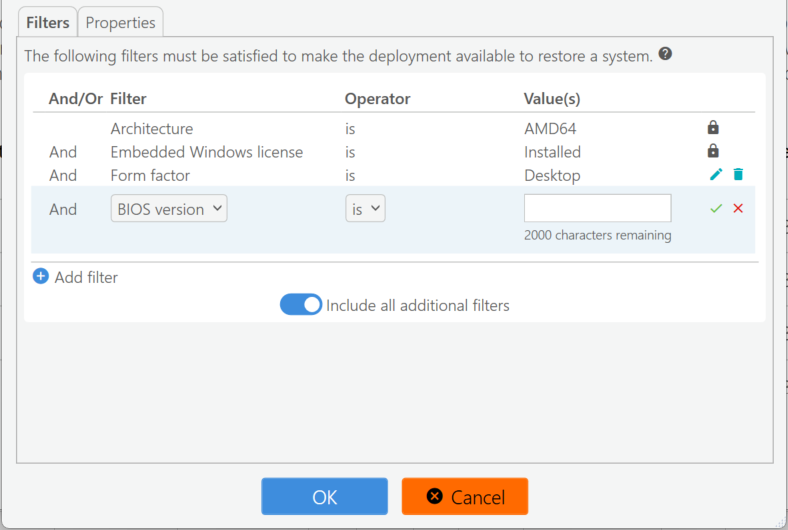
If you enable Include all Additional Filters, then ALL required and additional filters must be satisfied to make the deployment available.
If Include all Additional Filters is not selected, then only ONE of the additional filters is required to make the deployment available.
A role that contains “tester” or “engineer” can override an incompatible deployment.
Choose your deployment
To choose your deployment, click the checkbox next to it.
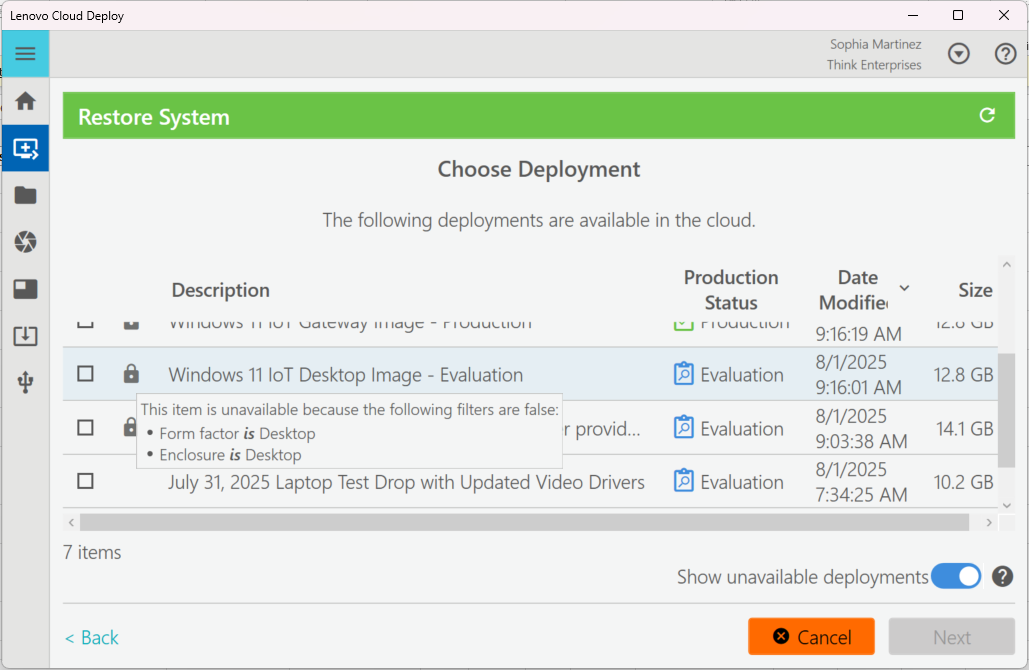
Use the slider to show the unavailable deployments. Click on the lock icon to view the filters a deployment has not satisfied. If a deployment is unavailable, you can modify the additional filters as necessary.
Note
Only the available deployments are shown unless the Show unavailable deployments slider is enabled.
System information
Click the Help icon in the application toolbar and then select System Information. The relevant system information displays.
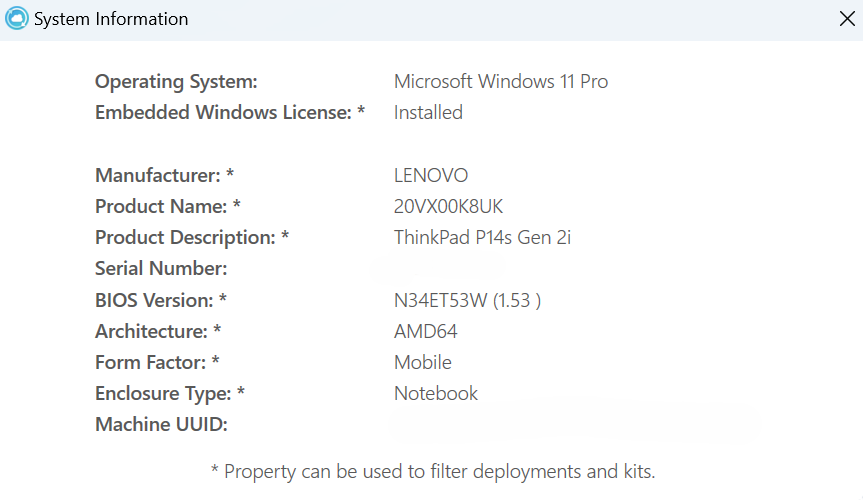
Properties followed by an asterisk (*) are used for filtering deployments and kits.
Download a deployment
Select one or more items to download.
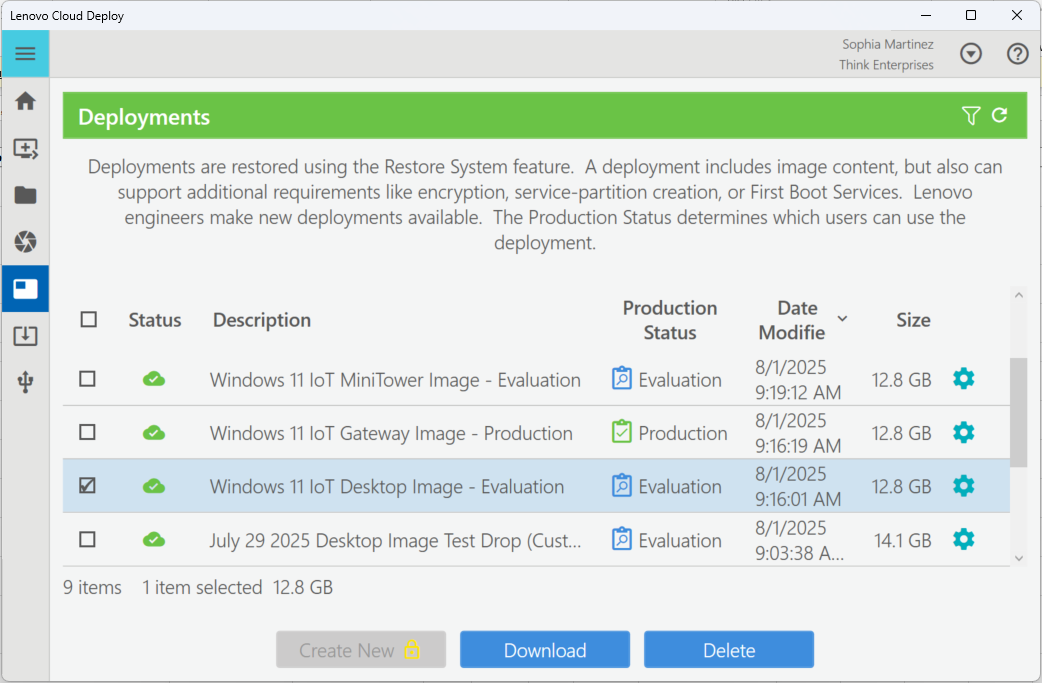
Click Download.
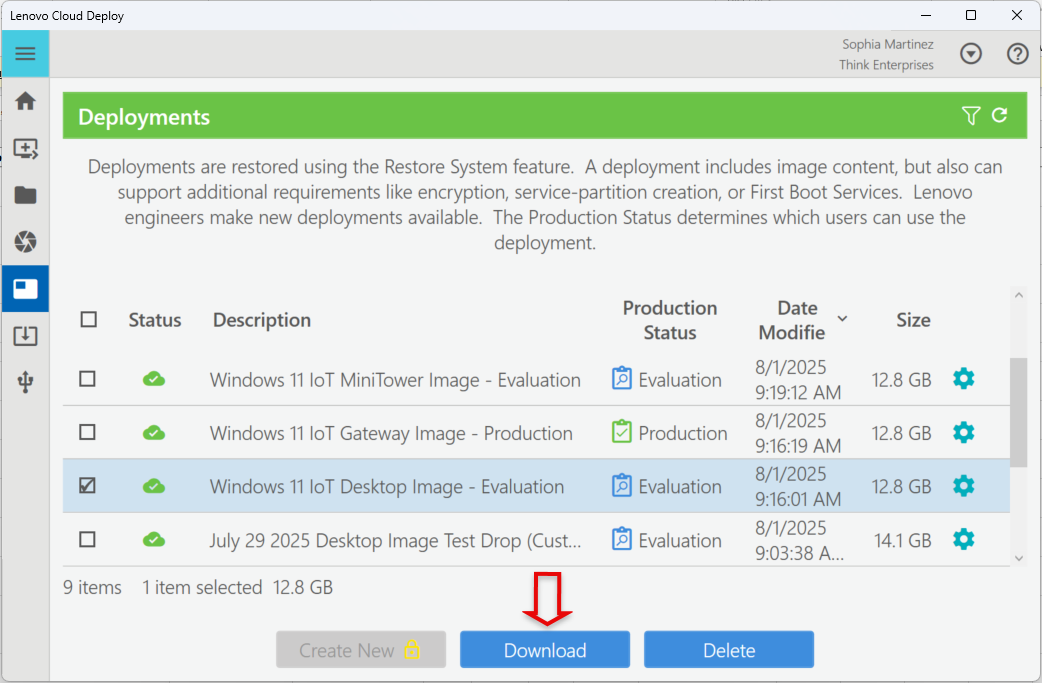
Click the Browse icon and select a download folder.
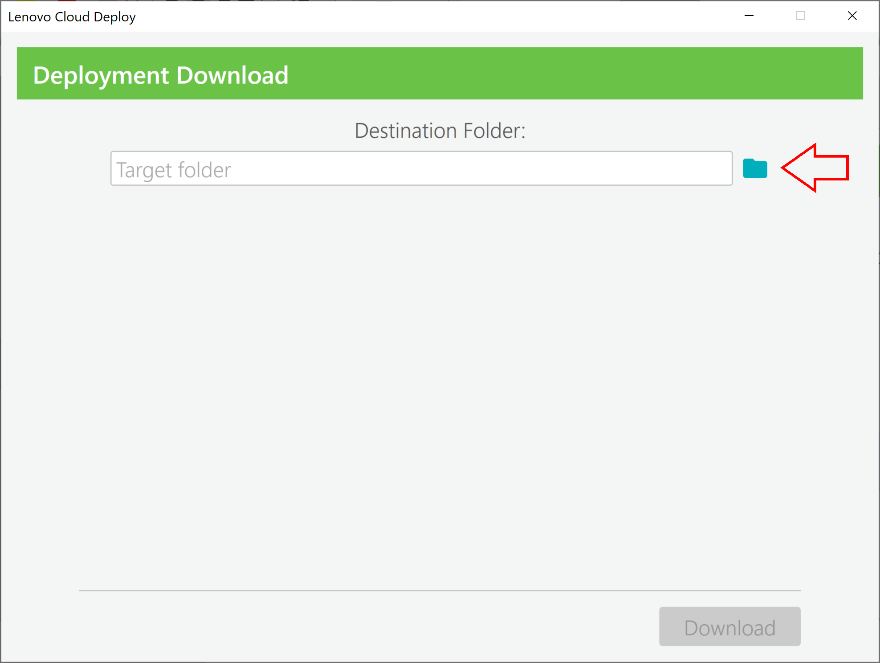
Click Download.
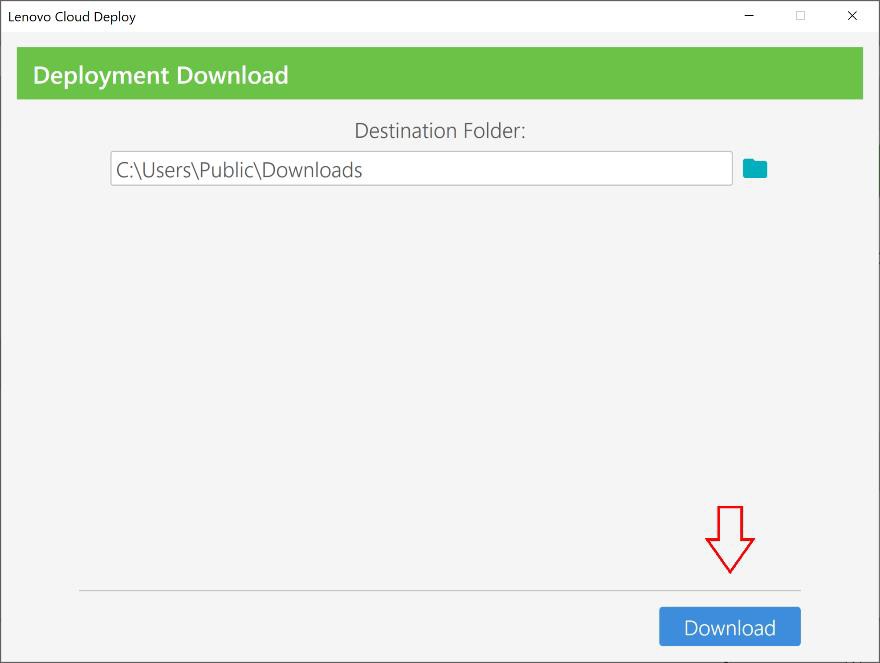
Your download’s progress displays.
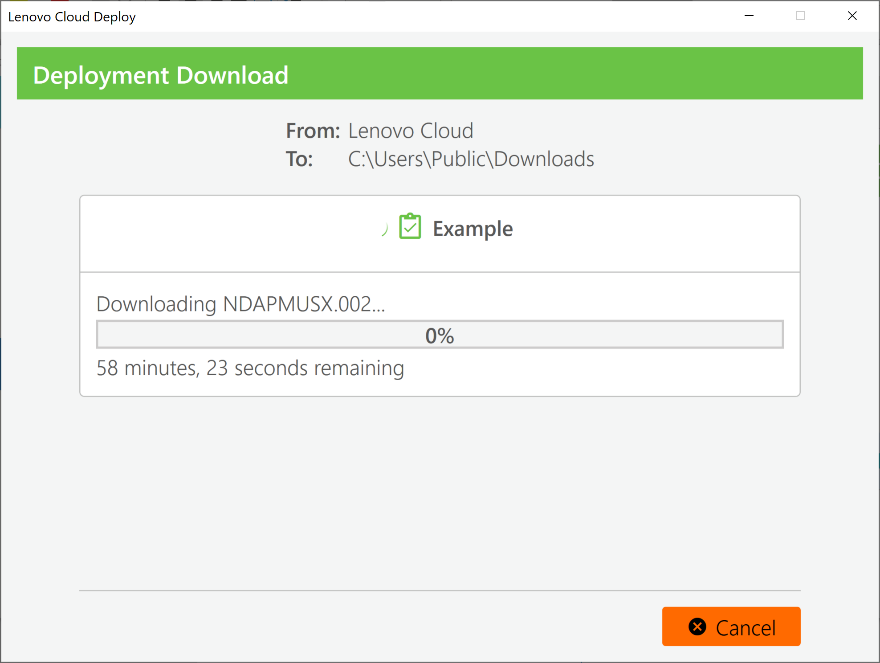
When the download completes, a success message displays. Click OK to return to the main screen.
Delete a deployment
Note
Only users with Engineer roles can delete deployments.
Select one or more deployments to delete.
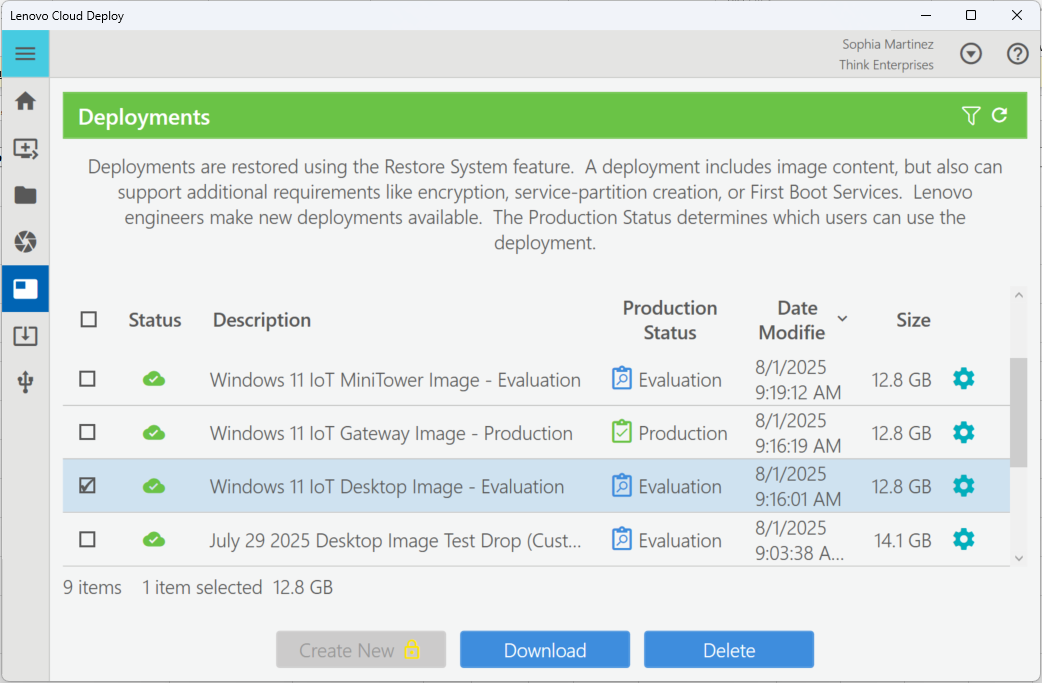
Click Delete.
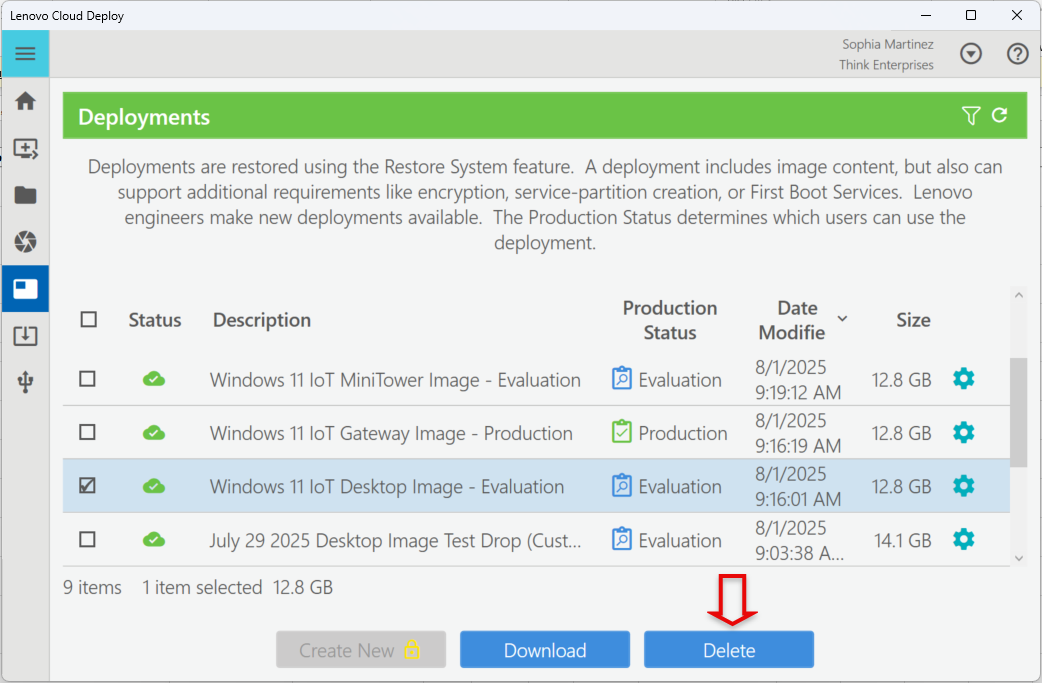
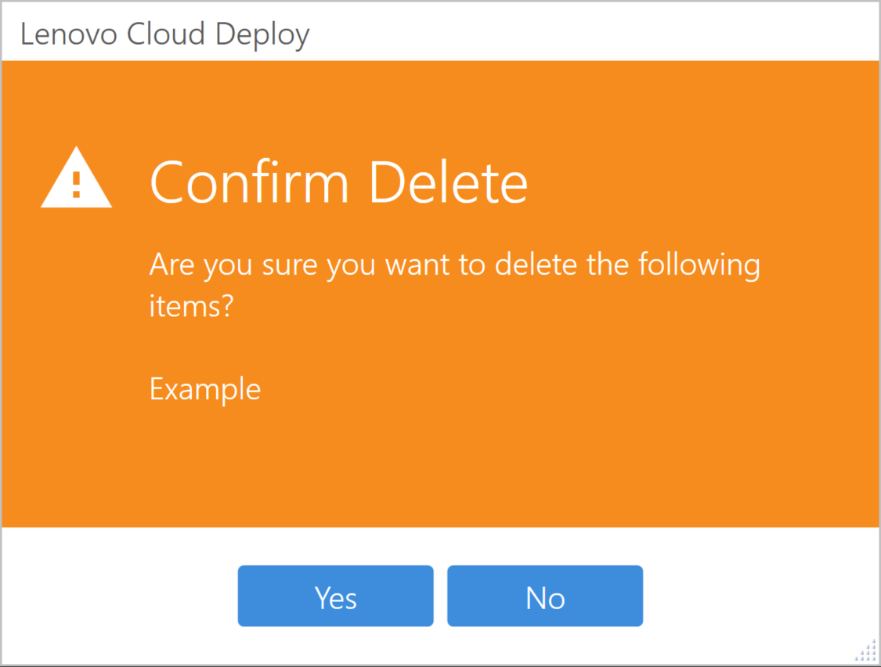
Confirm that you want to delete the selected items.
Note
When you delete a deployment, all associated modules are also deleted unless other deployments or maps use them.