Common LCD website features
The LCD website pages that contain data tables share some common features for working with the data on those pages.
Search
Pages with searchable data include a Search field in the upper right of the table:

Enter a string of text characters in the field. The page displays the items matching the characters you entered.
Filters
On the LCD website, pages that contain data tables feature filters to help you refine the data you see.
To access the filters:
Hover your cursor over a column heading.
Click the hamburger menu that displays.

Select the options you want to filter the data by.
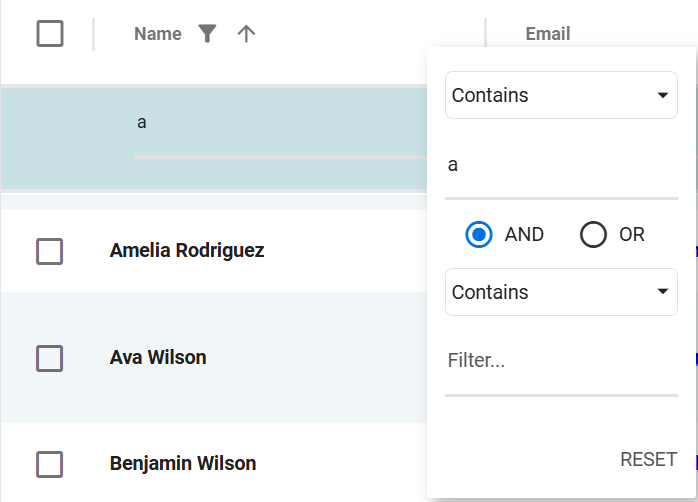
You can also:
click the arrow on a filter to arrange the list in ascending or descending order by that column’s entries.
remove all filters by clicking Clear Filters below the Search systems field in the upper right of the screen.
Most of the pages have standard filters:
- Contains
- Not contains
- Equals
- Not equal
- Starts with
- Ends with
You can enter a single search term, or create a filter using multiple search terms with a combination of AND or OR.
For filtering by dates, the following filters are available:
- Equals
- Greater than
- Less than
- Not equal
- In range
Filtering by quantities adds a few more options:
- Equals
- Not equal
- Less than
- Less than or equal
- Greater than
- Greater than or equal
- In range
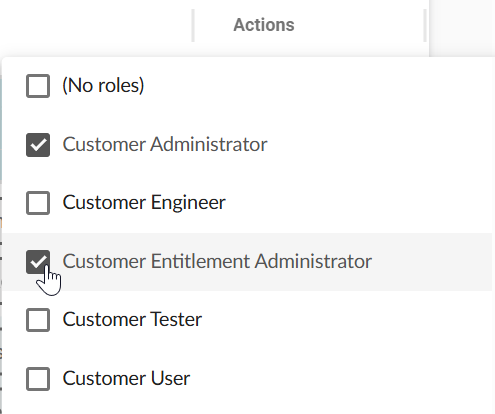
And finally, some filters contain pick lists where you check boxes for criteria to filter by.
Export
To export data from an LCD website page to an .xlsx spreadsheet file:
Check the box on the left of each item in the table you want to export.
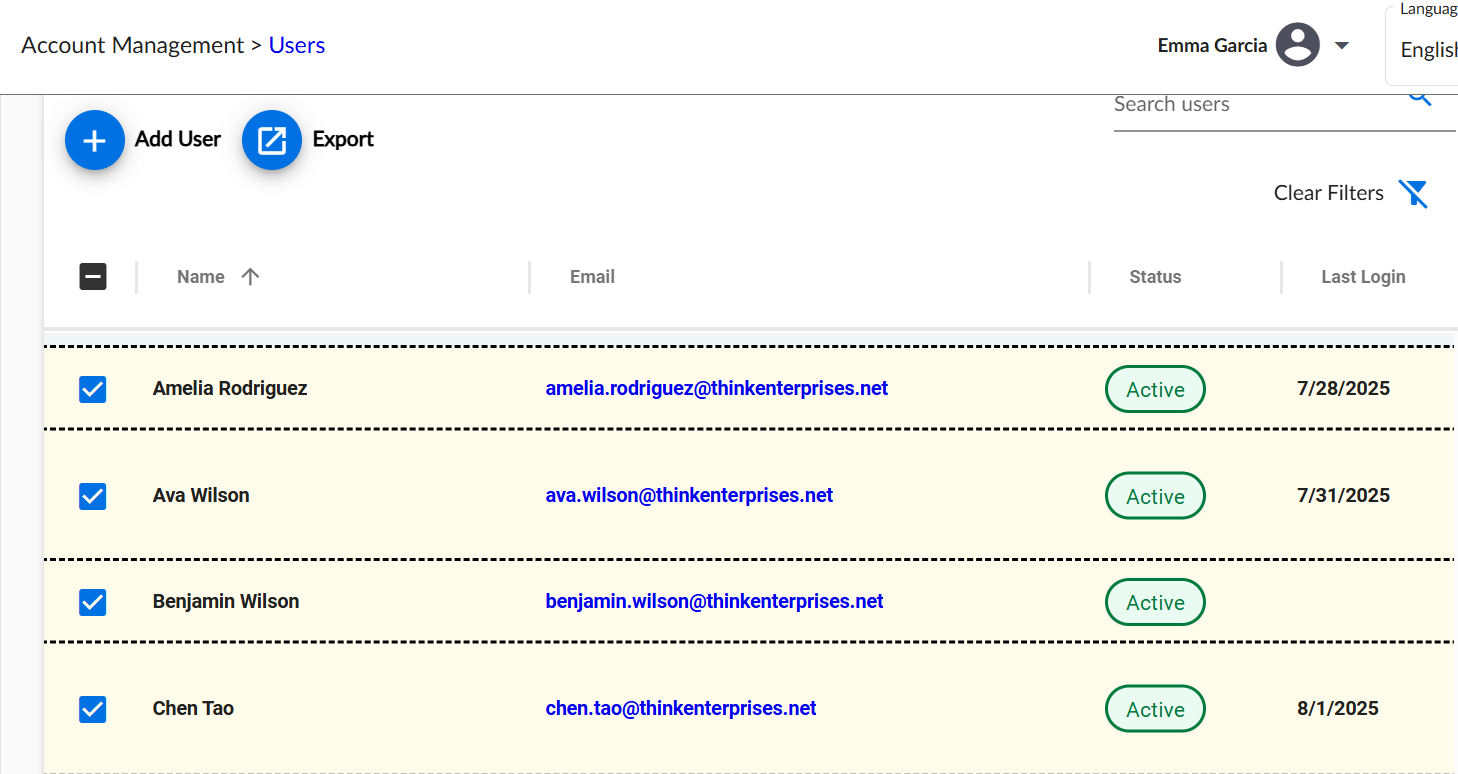
Click Export.

Select the folder you want to download the spreadsheet to. The default file name is the LCD website page you are exporting from; modify this filename as desired.
Click Save.
The spreadsheet downloads to the selected folder.
This example shows the spreadsheet format for the users we selected for export.
