Common LCD client features
The LCD client screens that contain data tables share some common features for working with the data on those pages.
Filters
In the LCD client, filters are available in the following features that display data in tables:
Packages
Quick Images
Deployments
Provisioning Kits
In these features, access the filters in the title bar of the screen by clicking the funnel icon. The filters then display below the column headings in the table.
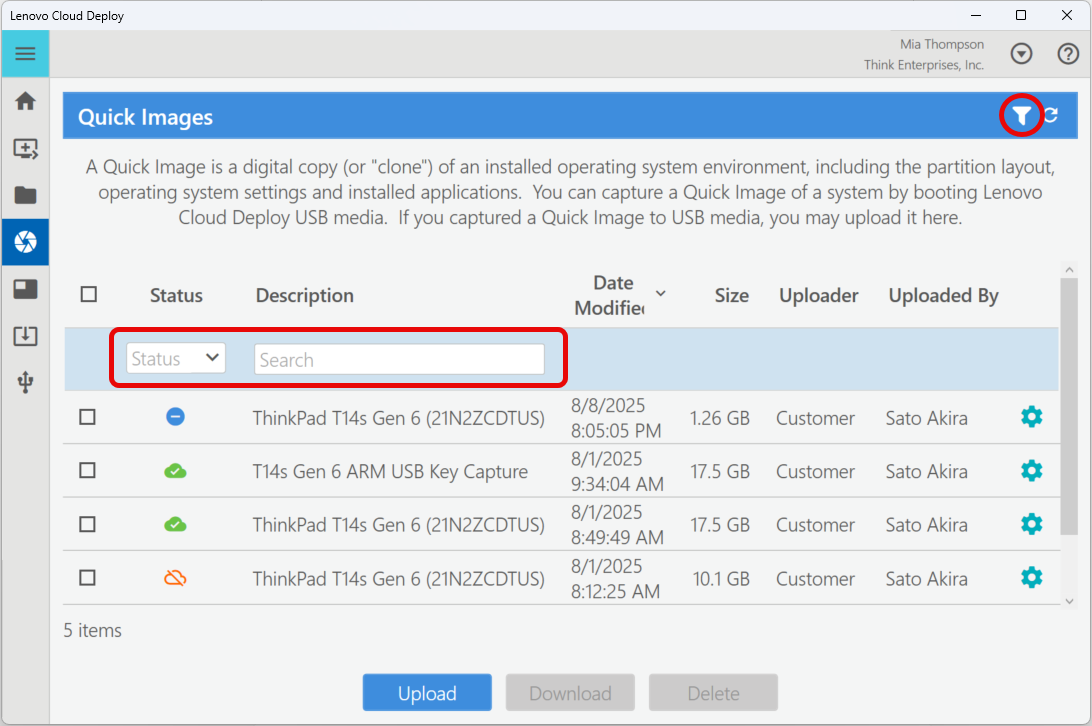
On these screens, some combination of these filters displays:
Status: the upload status of the selected deployment, quick image, or package. Possible statuses are:
- Completed
- Canceled
- Failed
- In Progress
- Stale (the item’s end state could not be determined due to client issues or the client was closed unexpectedly)
Description: enter a string of letters or numbers in the field. The table displays the items whose descriptions match the string you enter.
Production Status: the current state of a deployment or provisioning kit in its life cycle. See Production status for details.
Deployment filters
The LCD client’s Deployments feature contains a second level of filtering. When you click the gear icon on a deployment, the Properties screen presents two tabs, Filters and Properties. On the Filters tab, you can select criteria that direct the LCD client to make the deployment available only to systems that satisfy the filters. For example, you can set filters to make a deployment available only to systems with a BIOS version that you specify, or for systems with a specified form factor.
For details on using deployment filters, see Deployment filtering.
Properties
To view an item’s properties, double click on the item or click its gear icon, circled in red in the following image.
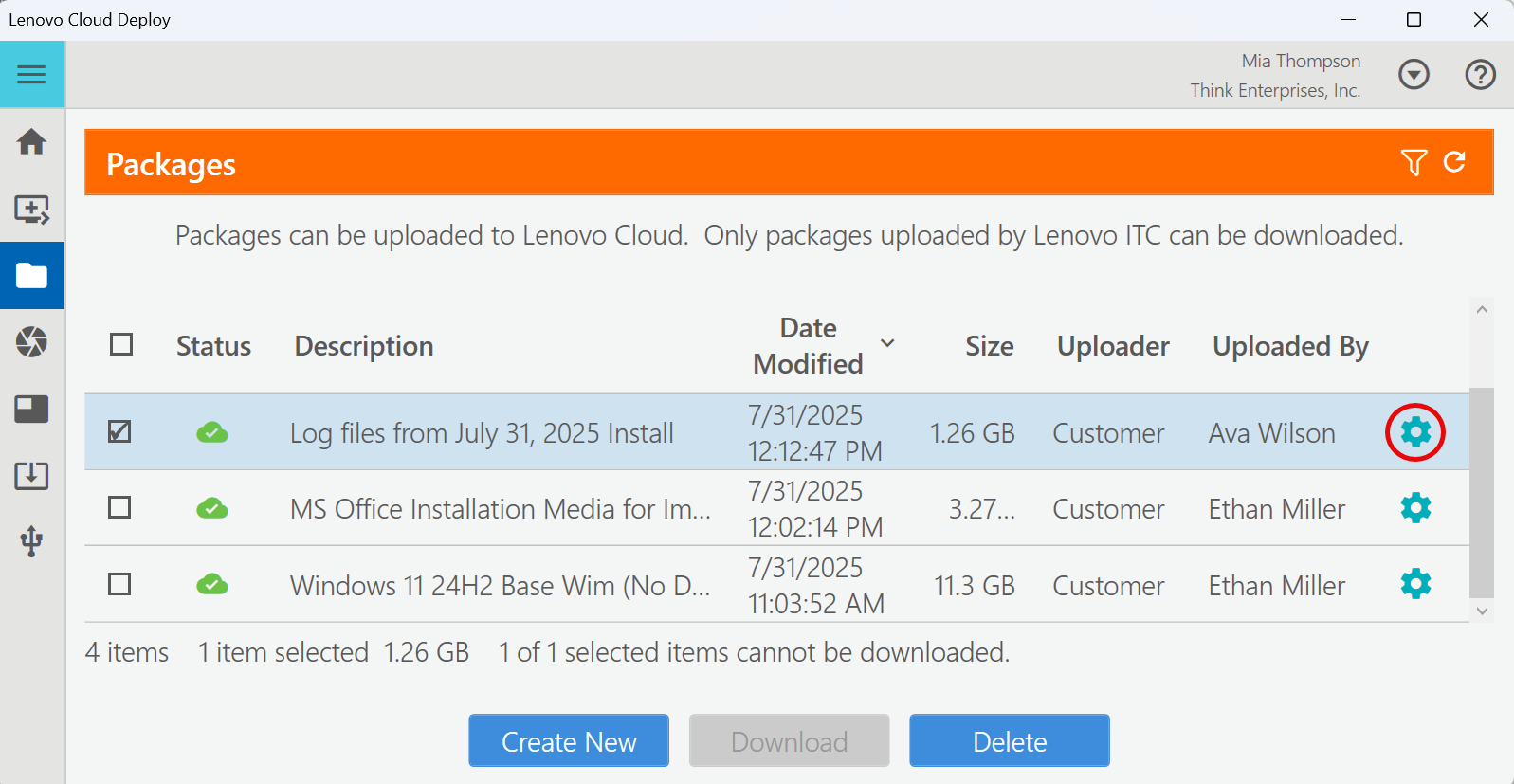
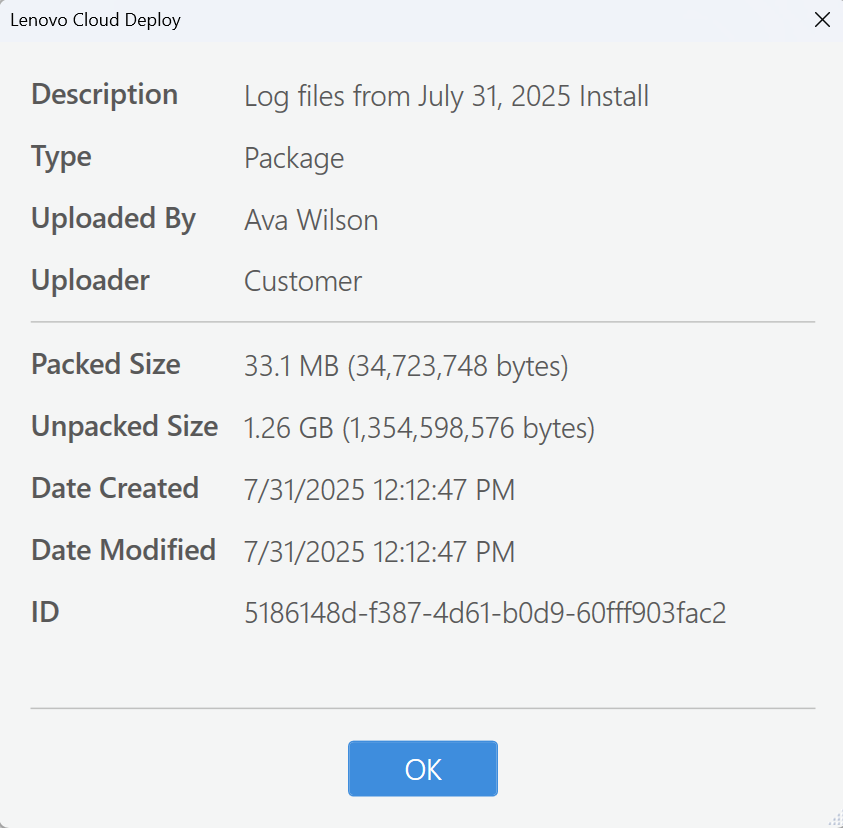
The Properties form provides additional details and easy access for copying information.