Generalize an image using Sysprep Assistant
Note
Sysprep Assistant has been deprecated by Microsoft and may be removed from LCD USB media in the future.
To deploy a Windows image to different PCs, you must first generalize the image to remove computer-specific information such as installed drivers and the computer security identifier.
LCD USB media contains the Sysprep Assistant utility, which creates the answer file needed for Microsoft’s Sysprep utility.
If you are a solution builder and are working with the Imaging Technology Center, perform the following procedure to prepare a copy of your corporate solution for the cloud.
On a donor system, install Windows and all required applications.
Configure the system and prepare it for replication.
While logged in as an Administrator, insert the LCD USB media.
In the File Explorer, select the USB media and double click Sysprep Assistant.
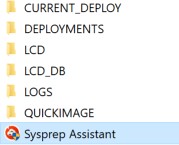
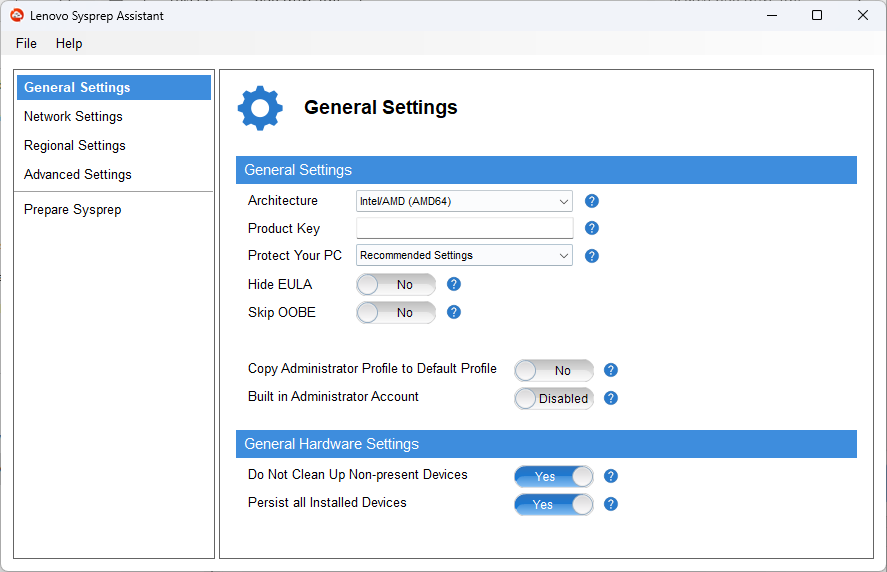
Lenovo Sysprep Assistant launches.
Use the application to define the values you want to use for Sysprep.
The default settings the application starts with are enough to prep a system for Lenovo. If you have questions regarding the options available, contact your ITC engineer.
When you are ready to run Sysprep, click Prepare Sysprep and click Run Sysprep.
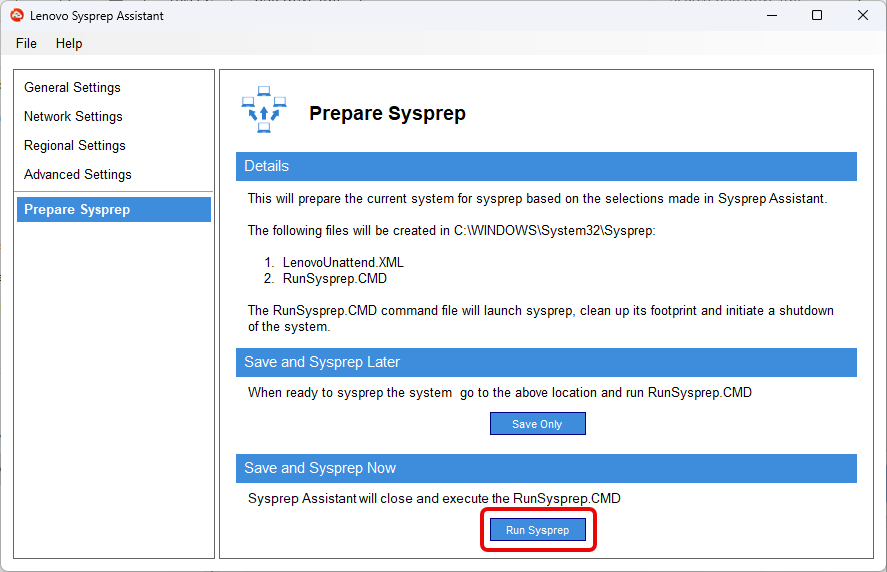
When the computer completes the Sysprep operation and shuts down, you are ready to capture an image of your device to deliver to Lenovo.