Website settings
The Account Management > Settings page manages the LCD website’s behavior in the following ways.
Account Settings
Only two fields in the Account Settings section are editable: Password Exp Days and Password Notice Days. To edit either of these, click the field and adjust the number of days using the arrows. You can either click Submit to save your changes, or click Reset to return to the original settings.
Other fields are included for information only and are not editable:
Account Name
Account Key
Account S3 Region
User Management
Date Created
Date Modified
Deployment and Logging Settings
The Offline Media Duration is the number of days that offline USB media can be used to deploy systems and can be in the range of 1 to 180 days.
This field can be edited by using the up and down arrows. You can either click Submit to save your changes, or click Reset to return to the original setting.
Account Domains
Users can be automatically associated with your account so that they do not have to enter their account key as part of the sign-in process. To do this, add their email domain suffix (e.g., lenovo.com) as follows:
Click the + symbol to open the Add Domain window.
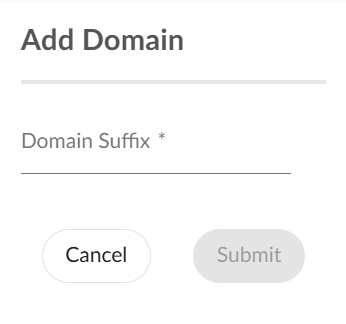
Enter the domain suffix and click Submit.
To delete a domain suffix:
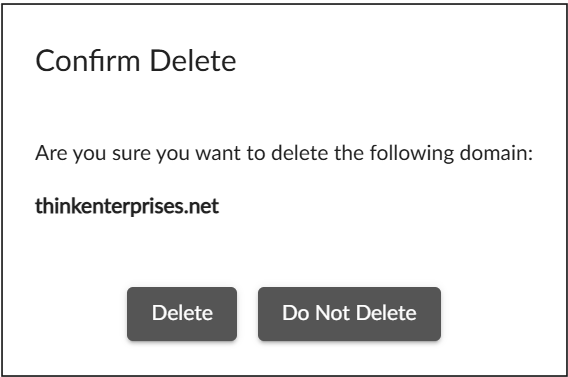
Click the Trash icon for the domain suffix you want to delete. A confirmation window opens.
Click Delete. (If you change your mind, click Do Not Delete.)
Entitlements
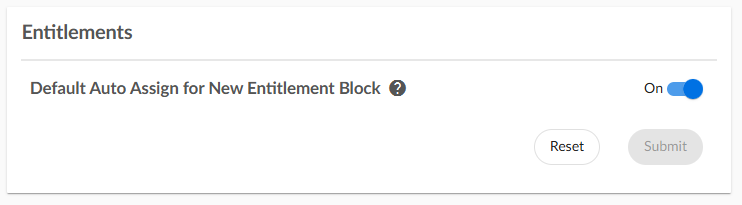
Users with the Customer Administrator role can use this setting to set the default behavior for auto-assigning systems when an entitlement block is created. When the toggle switch is enabled, LCD automatically assigns entitlements to systems included in entitlement blocks that are created. Existing blocks are not affected.
However, users who want to more closely manage their entitlement consumption can disable this toggle switch, and then the default behavior will be to manually assign all entitlements when a block is created.
On the LCD website left menu, click Settings.
Locate the Entitlements card on the screen.
Click the Default Auto Assign for New Entitlement Block toggle switch to change to On or Off as desired.
Click Submit to save your change.